

Calendar
The calendar shows your own events and the Google calendars you choose, side by side, and ties each meeting to its notes and follow-up tasks.
Views and moving around
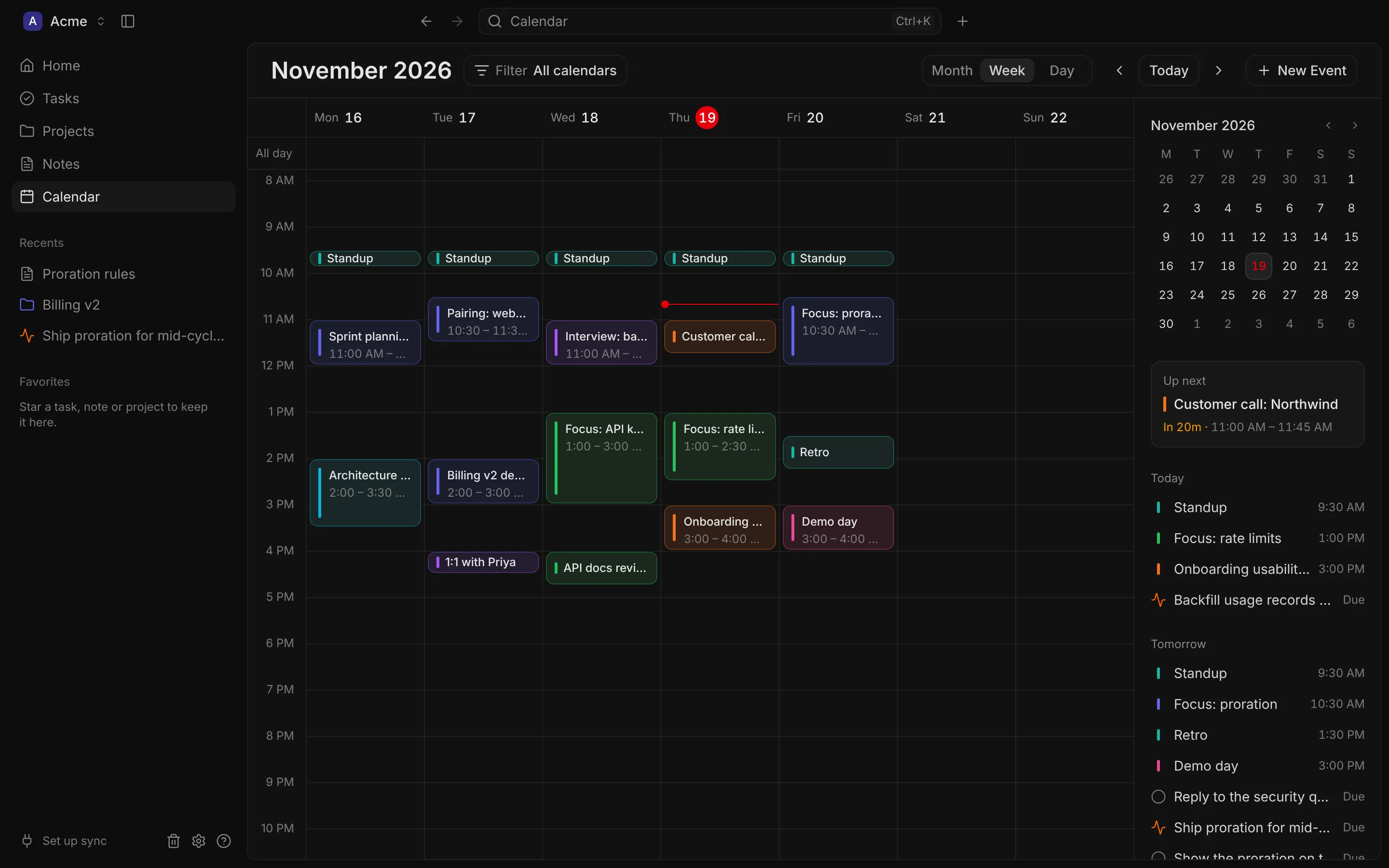
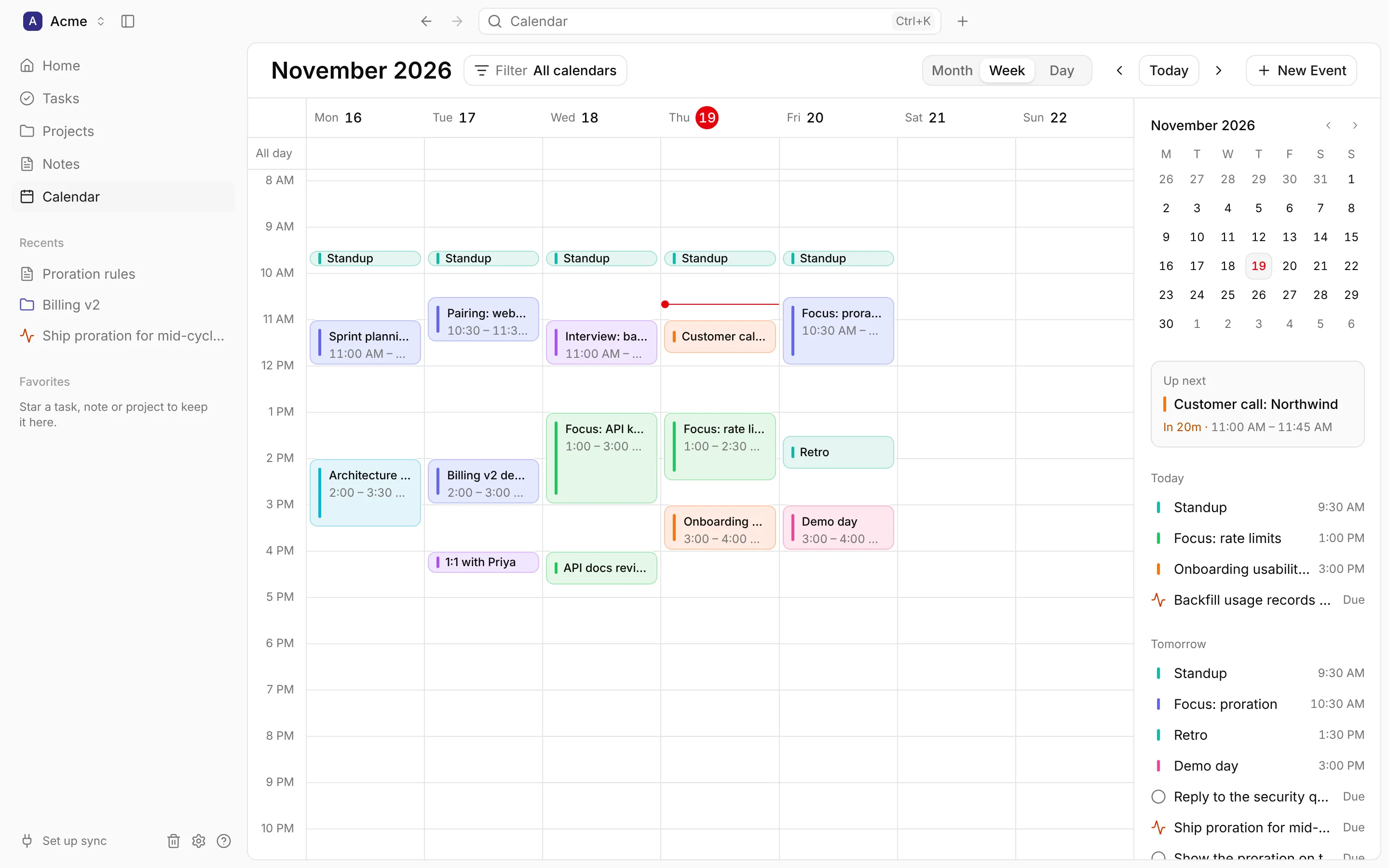
Section titled “Views and moving around”- Month, Week and Day. Month shows up to three events a day, then “+2 more”; click a date or “+2 more” to open that day. Week and day show an All day row, the hours, and a red line at the current time.
- Today comes back to today; the arrows go to the previous or next month, week or day.
- In a wide window, a side panel shows a small month to jump to any day; today’s meeting Up next (or Now while it runs), with how soon it starts and a Join button; and an agenda of Today and Tomorrow: their events, and the tasks due on them.
The calendar opens in the Default view from Settings › Calendar, where you can also choose the first day of the week and Hide weekends. Times are shown in your computer’s time zone, in the 12- or 24-hour Time format you choose.
Each event is tinted with its calendar’s colour, and overlapping events are stacked so every title stays readable. How an event looks tells you more: one you’ve declined is faded, one you answered “maybe” (or that’s tentative) has a dashed edge, and one with a meeting link has a camera icon.
Which calendars show
Section titled “Which calendars show”Filter lists your calendars: your local ones, and each connected Google account’s. Untick a calendar to hide its events; Show all brings them all back. DevBrain remembers what you hid.
Events you create go in a local calendar, which lives only in your workspace. Google calendars are chosen in Integrations.
Creating an event
Section titled “Creating an event”- Click a time in the week or day view, or drag across several, to start an event there.
- Click the All day row or a day in the month view for an all-day event.
- Choose New Event, or New event in the title bar’s + menu.
- Type it on Home:
Design review tomorrow at 3pm.
The New event dialog has a title, When (the day, start and end times, and an All day switch), Repeat, Calendar, Location, Meeting link and Description. To create it, choose Create Event or press ⌘ Enter (Ctrl Enter).
New events last the Default event length at first. Events can’t be dragged to another time yet: change their time in the event’s sheet.
Repeating events
Section titled “Repeating events”Repeat can be Every day, Every weekday, Every week (on the event’s weekday), Every month or Every year. A repeating event stays at the same local time when the clocks change.
When you change or delete one occurrence of a repeating event, DevBrain asks which events to change:
- This event: only this one.
- This and following events: this one and every later one.
- All events: the whole series.
An event’s sheet
Section titled “An event’s sheet”Click an event to open it in a sheet beside the calendar.
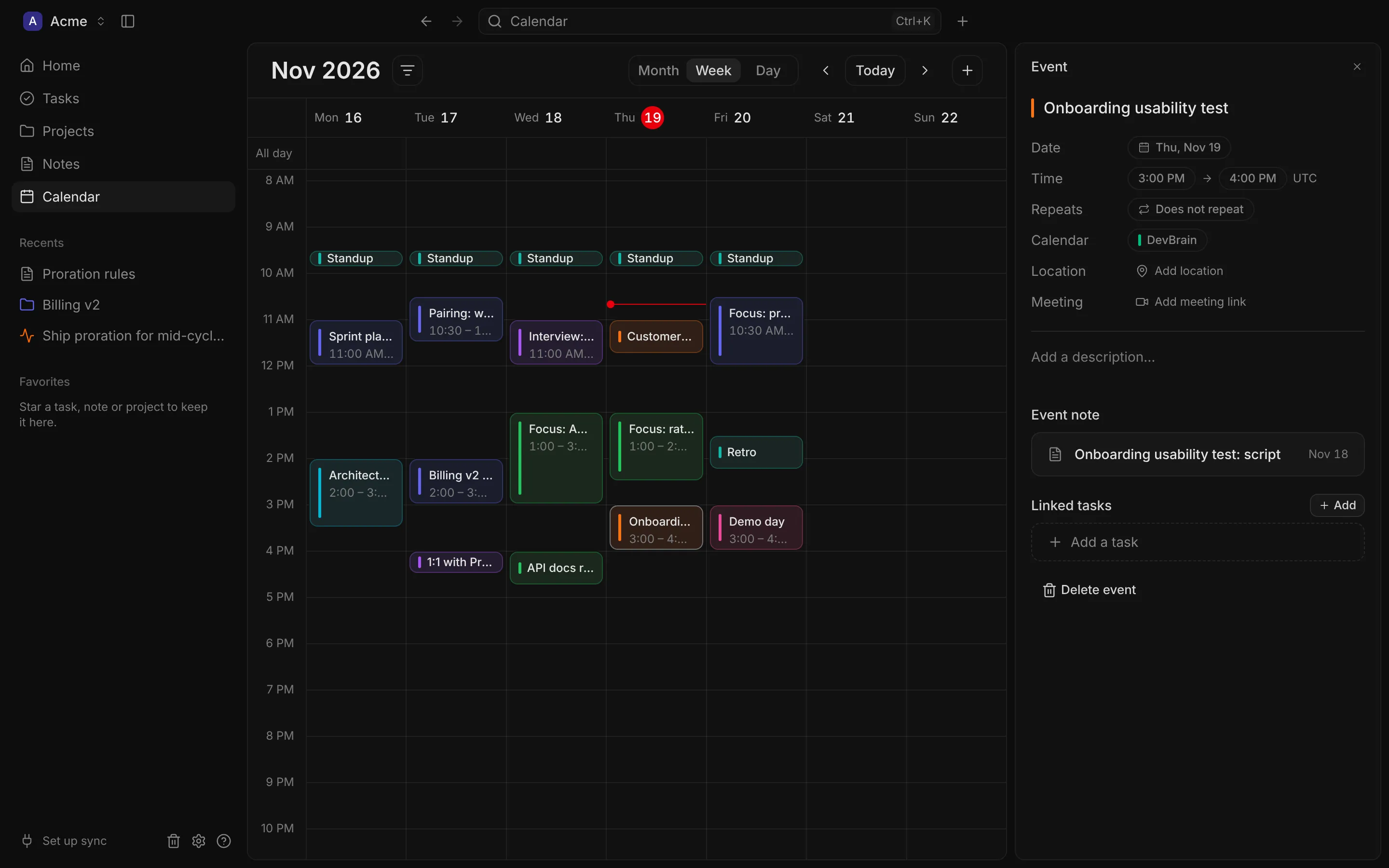
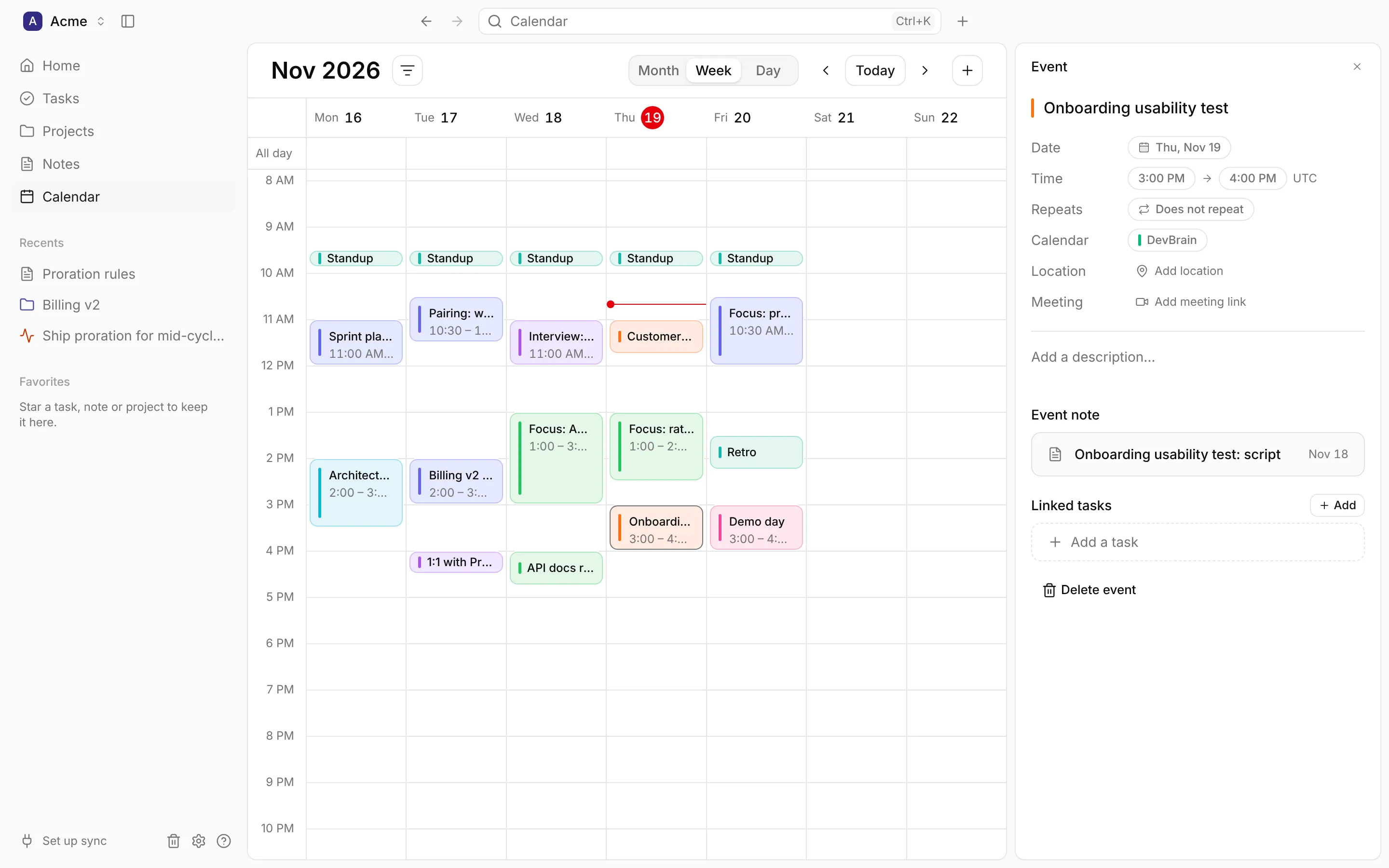
For your own events, everything in the sheet can be edited where it is: the title, Date, Time, Repeats, Calendar, Location, Meeting link (with a Join button) and the description. Delete event removes it; its note and linked tasks are kept.
Below, every event, including Google’s, has:
- Event note: the meeting’s note (see below).
- Linked tasks: tasks linked to this event. Add creates a task already linked to it.
Meeting notes
Section titled “Meeting notes”Open an event’s note to take notes during the meeting. With no note yet, Start Note creates one named after the event (“Standup notes”) (or press N), and Link Existing Note links one you already have. The note opens in the sheet, under a strip with the event’s time, place and Join button, so you can join the call and write at once. Open as page opens it in the full editor.
The note stays linked to the event: it appears in the Notes page with the event’s pill, and the event shows its note.
Google Calendar events
Section titled “Google Calendar events”Events from Google Calendar are read-only in DevBrain, with a Google Calendar badge. Their sheet shows your Response (Going, Maybe, Not going or Not answered); change them, or your response, in Google Calendar (Open in Google Calendar). You can still give them a note and linked tasks.
See Integrations for which events sync.