

Home and quick capture
Home is the page DevBrain opens to (you can pick another Start page in Settings). It tells you what matters right now, and gives you a box to write something down before you forget it.
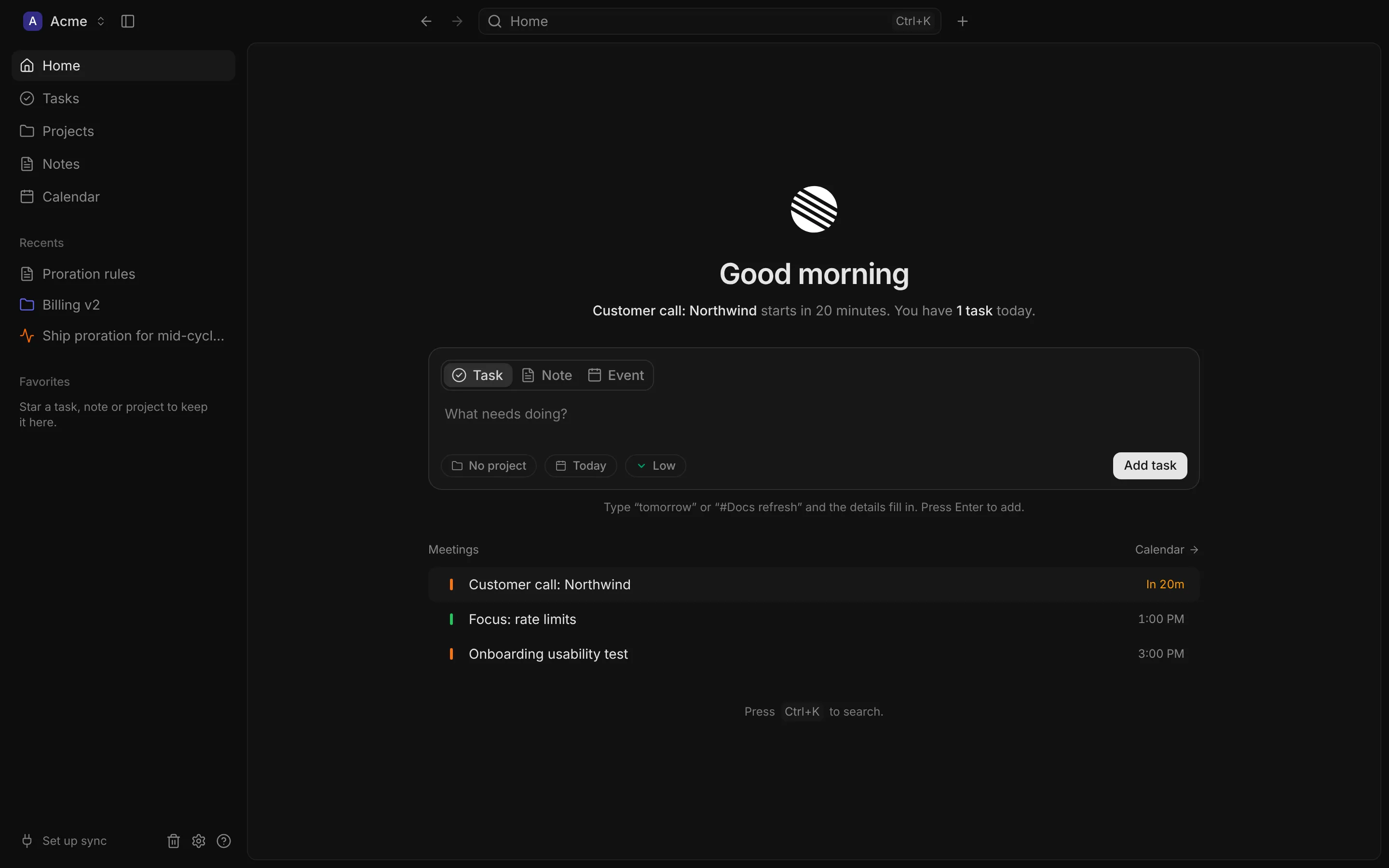
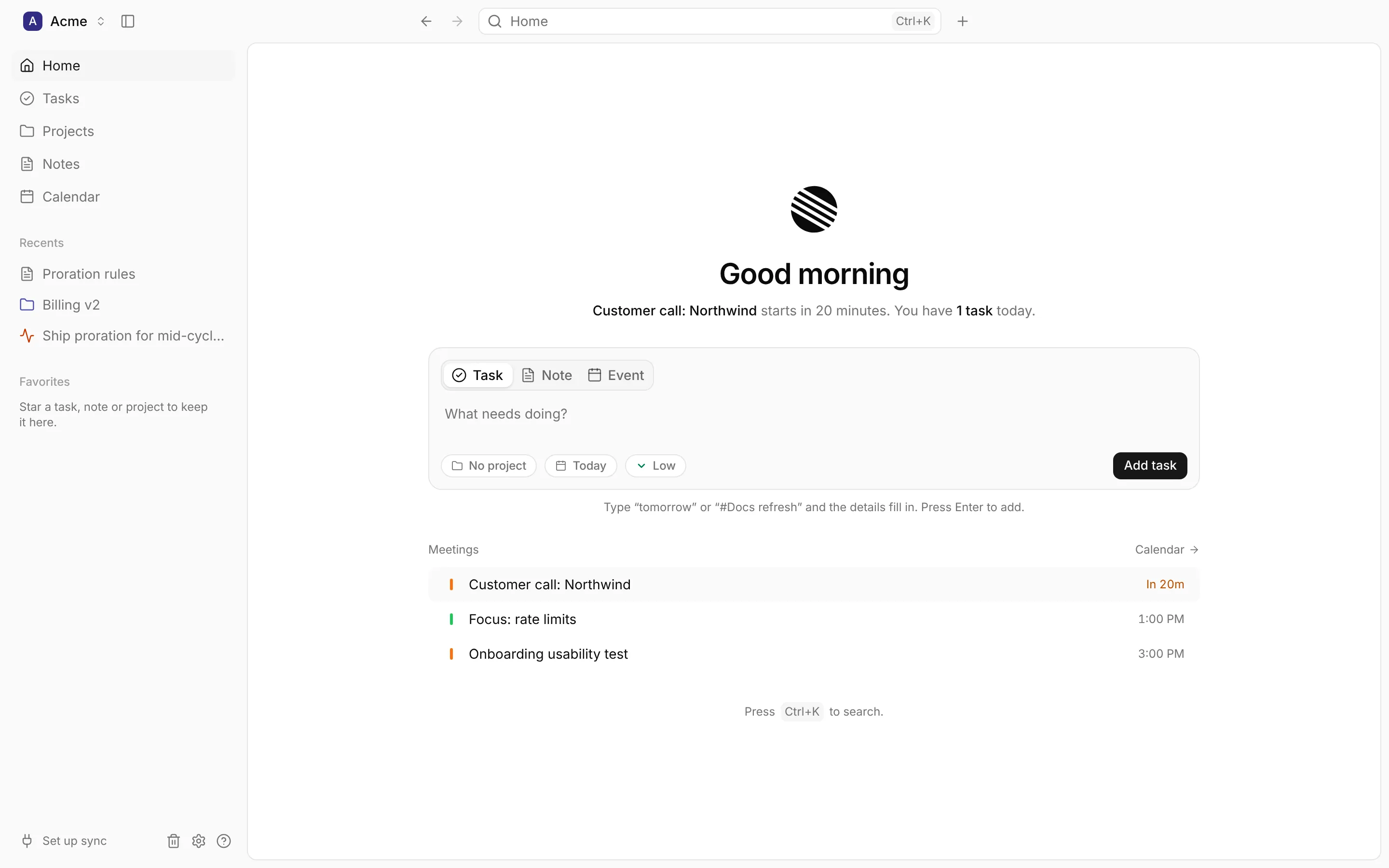
What Home shows
Section titled “What Home shows”- A greeting and a sentence about your day, such as “You have 3 tasks today, and 1 is overdue.” or “Standup starts in 12 minutes.”
- The capture box (below).
- One section, whichever needs you soonest, with up to three rows:
- Meetings: today’s next meetings, counting down. A Join button appears five minutes before a meeting with a link starts.
- Tasks: open tasks due today or overdue. Tick them off or give them a date right here.
- Projects due soon (those due within a week) or, when none are, Recent projects (the ones you’ve been working on), with their progress.
- Recent notes.
- Get started, in a new workspace: buttons to connect Google Calendar and Linear, and to start a project.
If an integration needs you to sign in again, the bottom of Home says so, with a Reconnect button.
Quick capture
Section titled “Quick capture”Pick Task, Note or Event, type one line and press Enter. DevBrain reads the details out of what you type, highlights what it understood, and fills in the pickers below the line. Anything you choose in a picker yourself wins over what it read.
Type the task, with a date and a project if you like:
| You type | DevBrain makes |
|---|---|
Draft Q3 roadmap tomorrow |
“Draft Q3 roadmap”, due tomorrow |
Fix the login redirect #Website |
“Fix the login redirect”, in the Website project |
Send the invoice by next friday #Billing |
“Send the invoice”, due next Friday, in Billing |
Renew the domain in 3 days |
“Renew the domain”, due three days from today |
#Projectfiles the task in a project:#followed by an existing project’s whole title, in any case (#billing v2). It never creates a project, and a#in the middle of a word is left alone.- A date can be “today”, “tomorrow”, a weekday with “next” or “on” (“next friday”), “in 3 days”, or a date like “Jun 30”. A short weekday on its own (“wed”) is left as part of the title, as it so often is a word in one. “on”, “by” or “due” before the date is taken with it.
- With no date, the task gets your Default due date; its priority is the Default priority (Settings › Tasks), or whatever you pick in the Priority picker.
Type a title (with #Project to file it) and press Enter: the note is created and opens,
ready to write in.
Events
Section titled “Events”Type what’s happening and when, such as Design review tomorrow at 3pm or
Lunch with Sam on friday at 12:30. The event goes in the calendar you choose in the Calendar picker and
lasts as long as the length picker says (the Default event length setting at first). With no
time, it starts at the next half hour today, or at 9 AM on another day.