

Getting started
Your first workspace
Section titled “Your first workspace”The first time DevBrain opens, it shows Welcome to DevBrain. Everything you make in DevBrain lives in a workspace, so start by making one:
- Choose Create Workspace.
- Give it a Workspace name (for example “Personal” or your company’s name), and pick a Colour for its tile.
- Choose Create Workspace. DevBrain opens it on Home.
If you already have a workspace from another computer, choose Open Existing Folder… instead (see moving a workspace).
Next time, the Welcome screen lists your Recent workspaces, but you’ll rarely see it: DevBrain reopens the last workspace you used, on the page you left it on.
A tour of the window
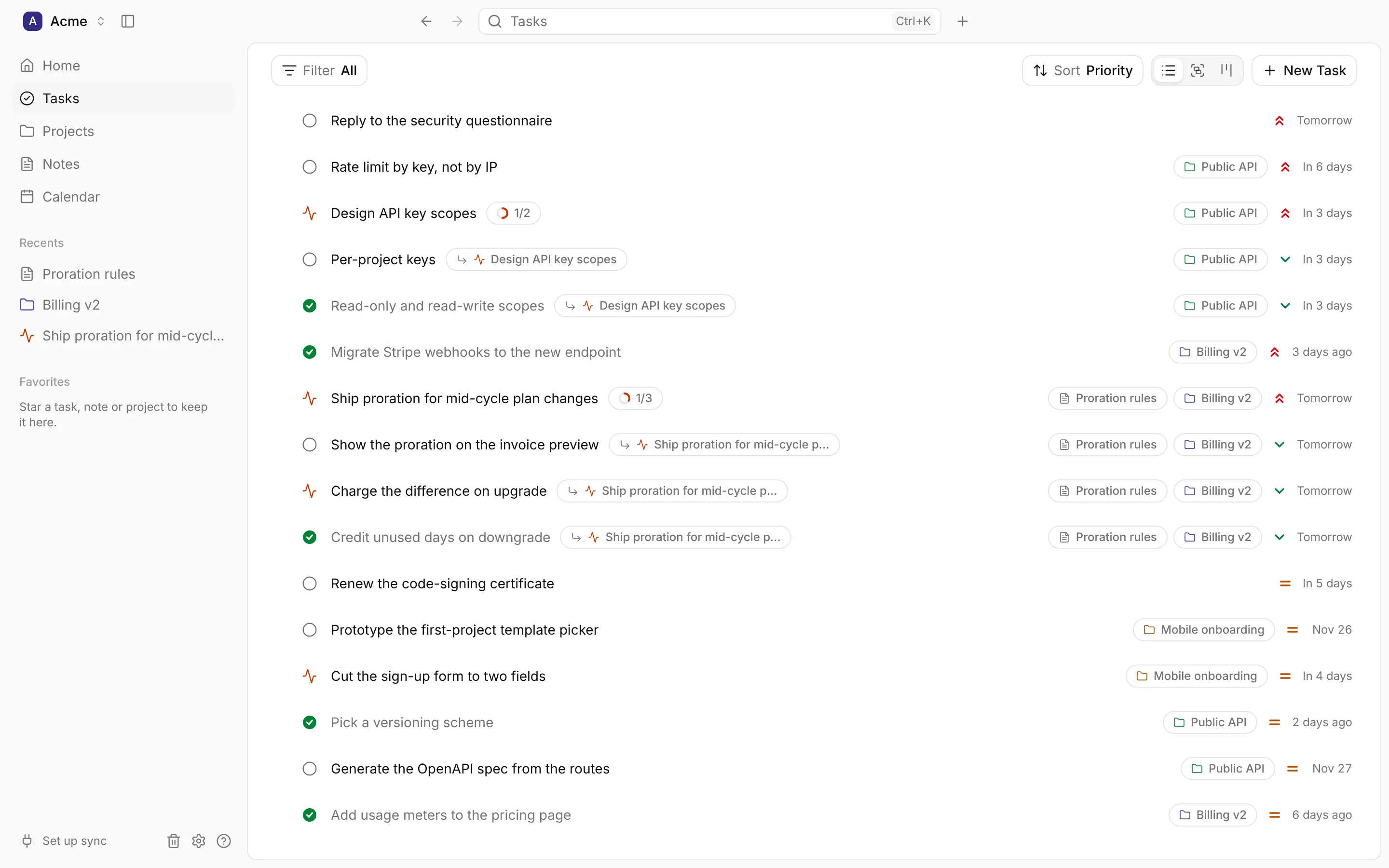
Section titled “A tour of the window”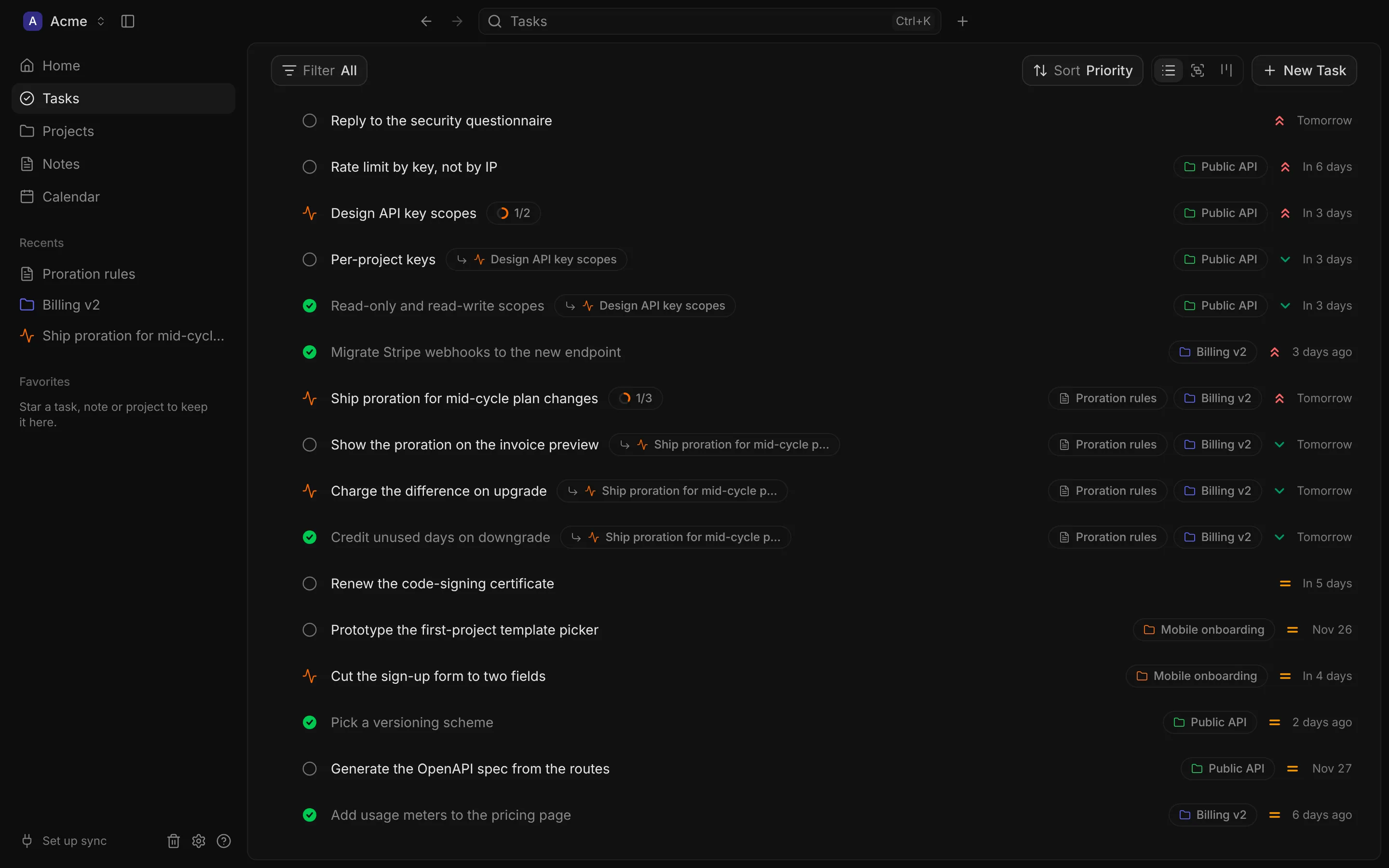
The sidebar
Section titled “The sidebar”- Home, Tasks, Projects, Notes and Calendar: the workspace’s pages.
- Recents: the last five tasks, notes and projects you opened.
- Favorites: what you’ve starred. Star a task, note or project with the star in the title bar, or press F in a list. More shows the rest when there are more than five.
- At the bottom, the sync status (“Synced 2 min ago”, “Set up sync”, …), which opens Integrations, then buttons for Trash, Settings and Help (the keyboard shortcuts).
Click Recents or Favorites to fold them away. Press ⌘\ (Ctrl \) or use the sidebar button in the title bar to hide the sidebar; rest the pointer on the window’s left edge to peek at it while it’s hidden. In a narrow window (under about 1080 pixels) the sidebar becomes a drawer that slides over the page.
The title bar
Section titled “The title bar”From left to right:
- The workspace menu, showing the workspace’s name and colour. It lists your workspaces (click one to switch to it) and has New workspace…, Open folder… and Show in Finder (Explorer on Windows, File Manager on Linux), which opens the workspace’s folder in your file manager.
- Back and Forward, like a browser’s, within the workspace you’re in.
- The search field. It shows the title of the page you’re on; click it, or press ⌘K (Ctrl K), to search.
- The + menu: New task, New note, New project and New event.
- The page’s actions, on the right. A task, note or project has a star (Add to favorites) and a … menu with what you can do to it: duplicate it, copy it as Markdown, move it to the trash, and more.
On Windows, the Menu button at the top left opens the app’s menu. On macOS and Linux the menu is in the menu bar.
Pages and sheets
Section titled “Pages and sheets”Most things open as a page: a task, a note or a project fills the window, and Back returns you to the list. A few open in a sheet beside the page instead, so you keep your place: a task you click on the board, an event in the calendar, and a note opened from either. A sheet’s button opens it as a full page.
Next steps
Section titled “Next steps”- Read how Home captures a task in one line.
- Learn the keyboard shortcuts: press ? to see them in the app.
- Connect Linear or Google Calendar, or import your tasks and notes.