

Notes and the editor
Notes are for everything you write: specs, meeting notes, decisions, checklists. You write in rich text, and DevBrain saves each note as a Markdown file in your workspace, in GitHub Flavored Markdown.
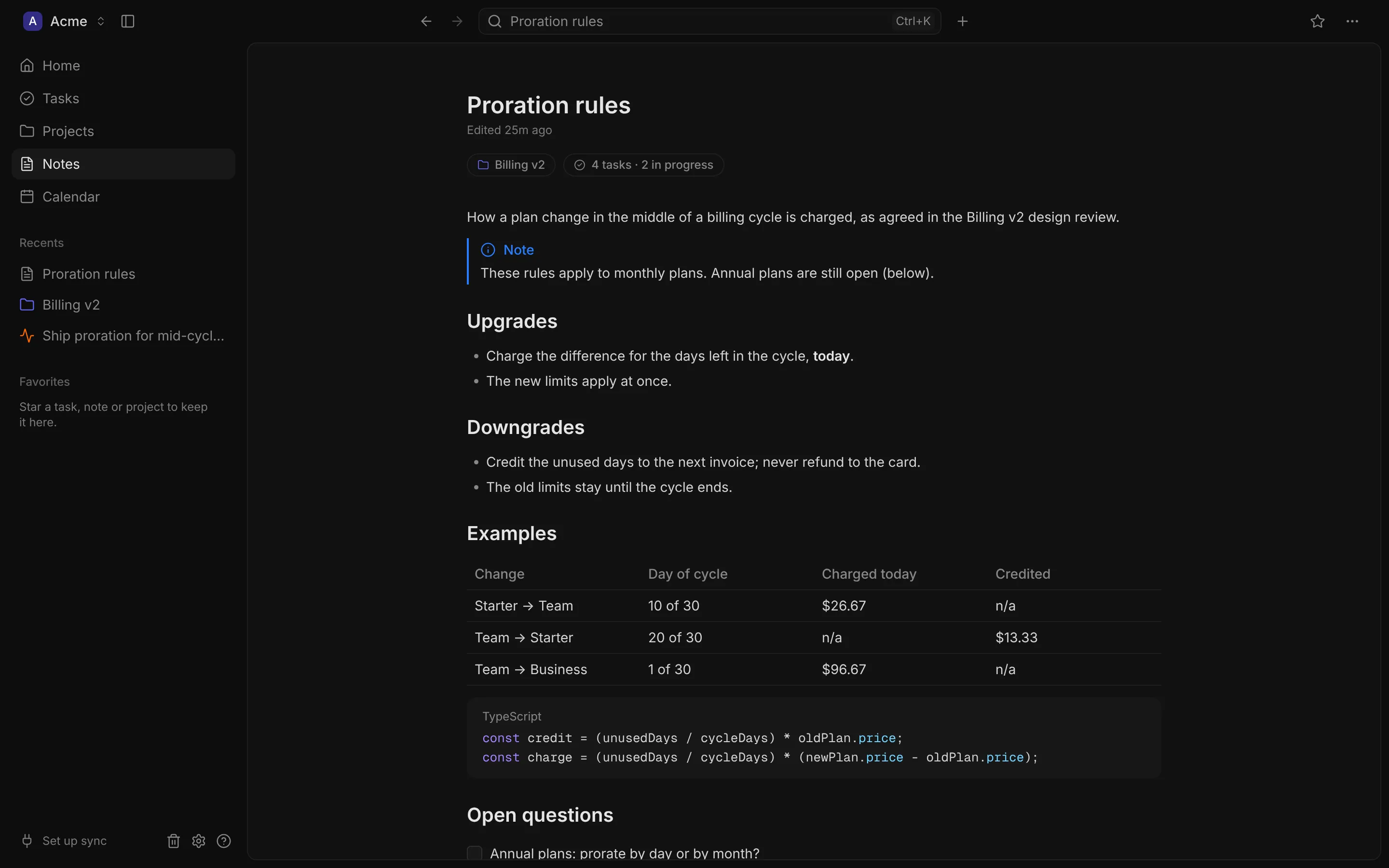
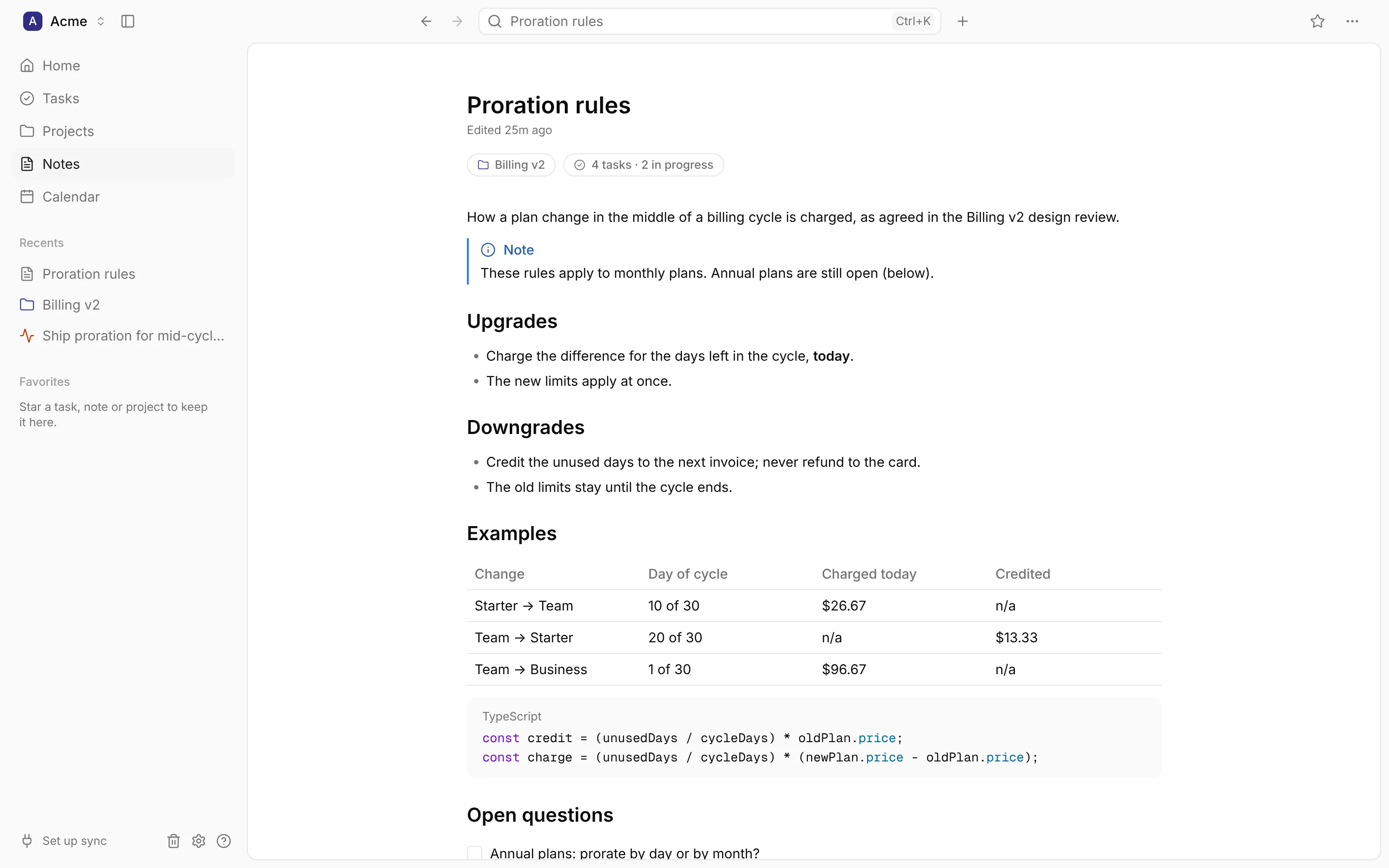
Writing a note
Section titled “Writing a note”Press N anywhere, choose New Note on the Notes page, or type a title in Home’s capture box with Note picked. The note opens with the cursor in its title; press Enter to move into the body.
There’s no save button: a note saves as you type, and when you leave it or switch to another app.
The Notes page
Section titled “The Notes page”Show notes as a List (with a one-line preview) or as Cards.
- Sort by Last edited (the default), Created or Title.
- Filter by Project, or by Link: linked to an event, linked to a task, or not linked.
- Right-click a note to open it, favourite it, change its link or project, copy it as Markdown or move it to the trash.
Linking notes
Section titled “Linking notes”A note can be:
- In a project: + Add to project under its title, or Change project in its … menu.
- The note of one event or one task: Link to in its … menu. A meeting’s note is the usual case: start one from the event in the calendar, and it opens beside the event while the meeting happens.
The links show as pills under the title. Click one to open the project, task or event.
Tasks from a note
Section titled “Tasks from a note”Any number of tasks can point back at a note, such as the follow-ups from a meeting. To make one:
- + Add task, under the title, creates a New task linked to this note, or links an existing one.
- /task, typed in the text, opens New task linked to the note and in its project.
Type it at the end of a line, such as
Send Ana the proration rules /task, and the line becomes the task’s title. Only the/taskis removed: the line stays as you wrote it. - Turn into task, in the format toolbar, creates a task from the text you selected, linked to the note and in its project, and puts a link to the task in place of the text.
Once a note has tasks, the pill says how many and how they’re going (“3 tasks · 2 in progress”), and a Tasks section at the end of the note lists them.
Mentions
Section titled “Mentions”Type @ in any note, then a few words, to link a task, another note or an event right in the text. The link shows the item’s current title, and clicking it opens the item.
The editor
Section titled “The editor”The same editor is used everywhere you write in DevBrain: notes, and the descriptions of tasks, projects and events.
GitHub Flavored Markdown
Section titled “GitHub Flavored Markdown”What you write is stored as GitHub Flavored Markdown (GFM), the Markdown of READMEs, issues and pull requests. A note reads the same on GitHub as in DevBrain, and you can paste one into an issue, or a README into a note, without losing its formatting.
- GFM covers headings, bold, italic, strikethrough, inline code, bulleted, numbered and to-do
lists, quotes, code blocks, tables, links and dividers. Callouts are GitHub’s alerts
(
> [!NOTE]). - For what GFM has no syntax for, DevBrain writes the HTML tags GitHub reads:
<u>for underline,<kbd>for a key,<sub>and<sup>, and<details>for a collapsible section. - Links to tasks, notes and events are ordinary Markdown links to a
devbrain://address, such as[Proration rules](devbrain://note/nte_…), so in another app they read as plain links.
You never have to write Markdown yourself: the menus, shortcuts and toolbar produce it, and Markdown you do type turns into formatting as you type.
Blocks
Section titled “Blocks”Type / at the start of a line for the block menu, or type the Markdown shortcut:
| Block | Shortcut |
|---|---|
| Heading 1, 2, 3 | #, ##, ### and a space |
| Bulleted list | - and a space |
| Numbered list | 1. and a space |
| To-do list (checklist) | [ ] and a space |
| Quote | > and a space |
| Code block | ``` |
| Divider | --- |
| Callout | / menu: Callout |
| Table | / menu: Table |
| Collapsible section | / menu |
- Code blocks highlight about 35 languages. Click the label above a block to choose its language; a block with none stays plain text.
- Callouts are GitHub’s alerts: Note, Tip, Important, Warning or Caution. Click the callout’s title to change its kind.
- To-do items are checkboxes in the note, saved as
- [ ]and- [x]. They aren’t DevBrain tasks; use + Add task for those. - The block menu’s DevBrain section links a note, a task or an event, like @. Its Task opens New task (see Tasks from a note); in a project’s or task’s description, the task goes in that project.
Formatting text
Section titled “Formatting text”Select text for the format toolbar: Turn into another block, Bold (⌘B),
Italic (⌘I), Underline (⌘U), Strikethrough (⌘⇧X),
Code (⌘E), Link (⌘K) and Turn into task. Markdown typed inline
works too: **bold**, *italic*, ~~strike~~ and `code`.
Turn into task creates a task titled with the selected text, with your default priority and due date, and replaces the text with a link to it. In a note, the task is linked to the note and in its project; in a project’s or task’s description, it’s in that project. It’s there when the selection is within one paragraph, heading or list item, outside a code block.
To open a link in your browser, ⌘-click it (Ctrl-click on Windows and Linux).
Copying and pasting
Section titled “Copying and pasting”- Copying puts Markdown on the clipboard, so a note pastes cleanly into a pull request, an issue or a chat.
- Pasting Markdown, from a README or an issue, turns it into formatting. Pasting from a web page or a document keeps its formatting. ⌘⇧V (Ctrl Shift V) pastes plain text.
- Code copied from VS Code becomes a code block in its language.
What the editor doesn’t show
Section titled “What the editor doesn’t show”For your safety, a note never loads anything from the internet:
- Images show as a chip with their description; click it to open the image in your browser.
- Only web (
httpandhttps) links can be opened. - HTML that isn’t one of the elements above shows as its source text.
All of these are kept in the file as you wrote them.
How notes are stored
Section titled “How notes are stored”Each note is a Markdown file in the notes folder of your workspace’s folder,
named after the note’s ID (such as nte_….md), with its title in front matter:
---id: nte_01JD3…title: Proration rules---
How a plan change mid-cycle is charged…
The note’s project, links and favourite are kept in the workspace’s database, not in the file.
- Opening a note never changes its file. The first time you edit one, DevBrain writes it in its own
consistent Markdown style:
-for bullets,**for bold, tables lined up in columns. - Saves are written to a new file and then moved into place, so a crash never leaves half a note.
- Show in Finder (Explorer, File Manager) in a note’s … menu shows its file in your file manager.
To take notes out of DevBrain as Markdown named by their titles, or to bring Markdown files in, use Import and export.