

Tasks
Tasks are the heart of DevBrain: your own, and the Linear issues assigned to you, in the same lists.
What a task has
Section titled “What a task has”| Field | Values |
|---|---|
| Status | Not started, In progress, Completed, Cancelled |
| Priority | High, Medium, Low (Linear issues with no priority show No priority) |
| Start date | Optional: when you mean to start |
| Due date | Optional. Today’s are highlighted; open tasks past their date are marked Overdue |
| Project | The project it belongs to, if any |
| Description | Rich text, written in the same editor as notes |
| Subtasks | Tasks inside the task, with their own status and dates |
| Event or note | One calendar event or one note it’s linked to |
| Pull request | A link to the task’s pull request |
Cancelled closes a task without completing it: it doesn’t count toward a project’s progress.
Creating tasks
Section titled “Creating tasks”- New Task on the Tasks page, New task in the title bar’s + menu, or press the key C anywhere.
- On Home, type one line such as
Fix the login redirect tomorrow #Website. - The + on a group’s heading or a board column, which fills in that group’s status, priority or project for you.
- From what you’re writing in a note or a description: type /task to open New task, or select text and choose Turn into task. A task made in a note is linked to that note (see Tasks from a note).
The New task dialog has the Title, a description, and buttons for the status, priority, due date and project. Its … button adds a start date, or a list of subtasks to create with it. Press Enter in the title, or ⌘ Enter (Ctrl Enter) anywhere, to create it. Turn on Create more to keep the dialog open for the next one.
New tasks start as Not started, with the Default priority and Default due date from Settings › Tasks.
Picking dates
Section titled “Picking dates”A date picker has quick picks (Today, Tomorrow, Next week), a calendar, and a field that reads what you type: “tomorrow”, “next fri”, “Jun 30”.
A task’s page
Section titled “A task’s page”Click a task in a list to open its page.
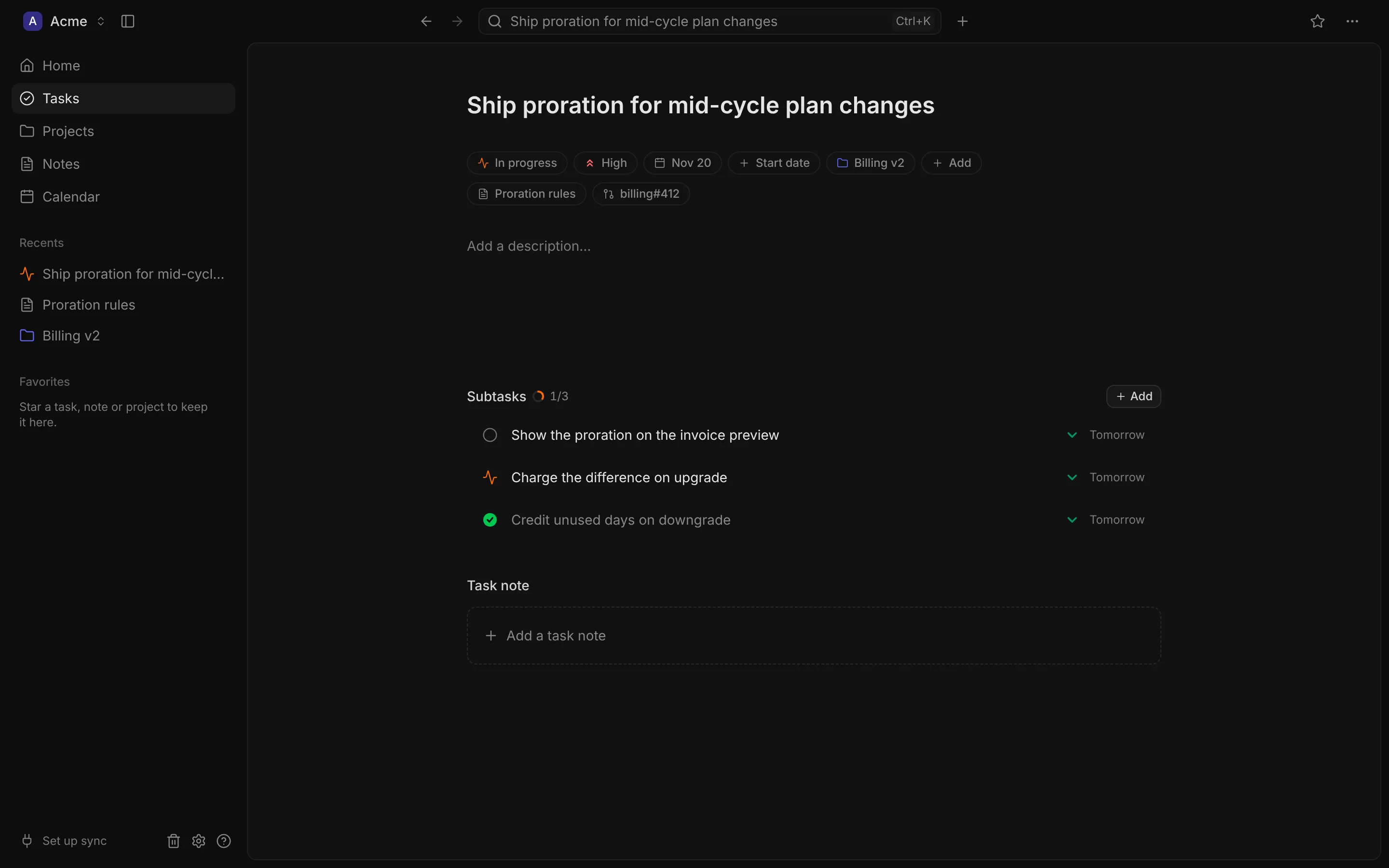
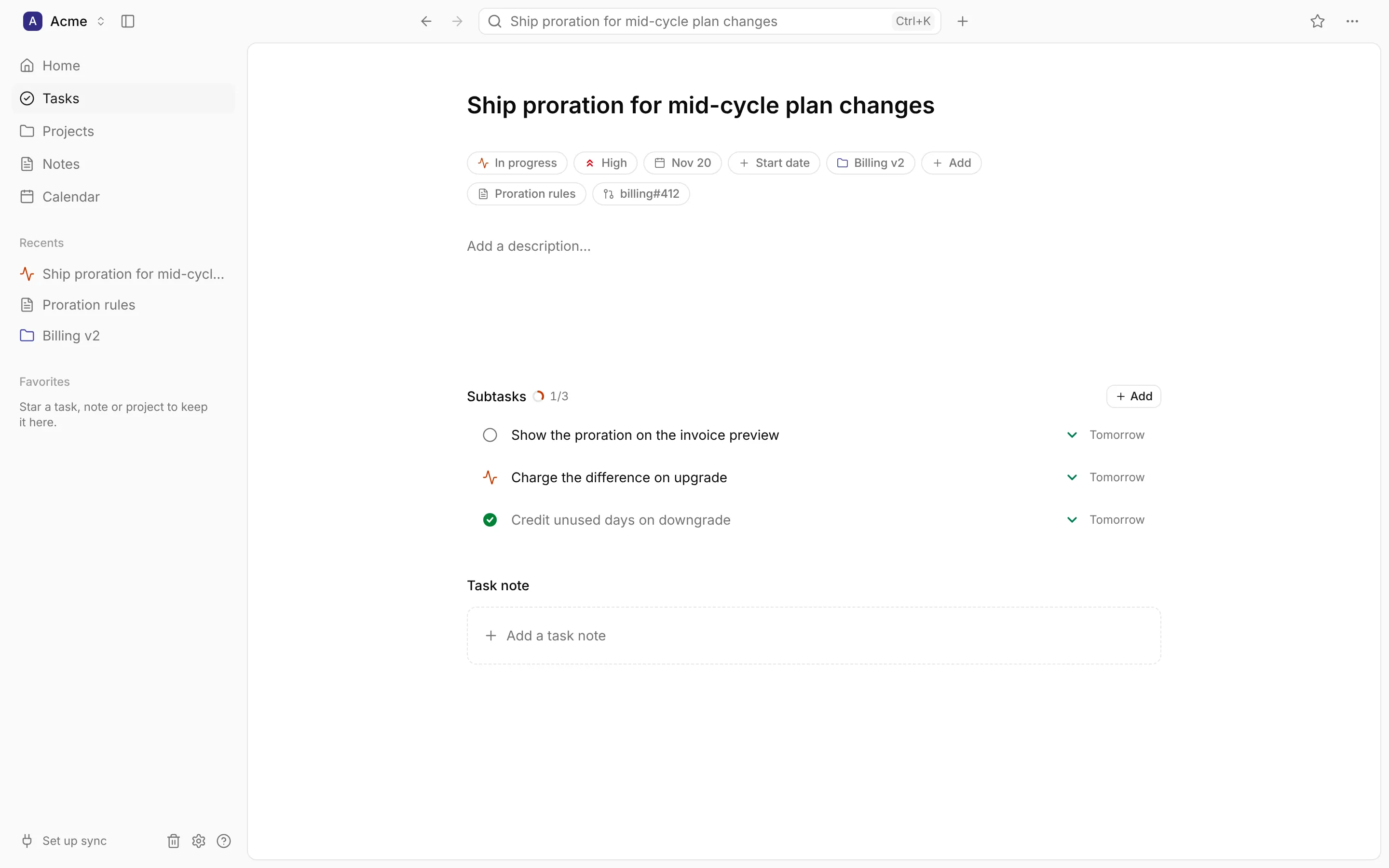
- The title: click to edit; Enter saves and Esc puts it back.
- The properties under it: click any to change it. + Add adds a Parent task, an Event or note, or a Pull request.
- The description, saved as you type.
- Subtasks, with a ring showing how many are completed. Add creates one.
- Task note: Add a task note makes a note named after the task, for the working notes that don’t belong in the description, and opens it beside the task.
The title bar’s … menu has the rest:
- Convert to project: the task becomes a project, its subtasks become the project’s tasks and its task note moves to the project. The task itself goes to the trash.
- Link to event or note…
- Make subtask of…, or Make top-level task for a subtask.
- Duplicate (⌘D): a copy, “Copy of …”, with its subtasks.
- Copy as Markdown
- Move to trash (⌘⌫)
Subtasks
Section titled “Subtasks”A subtask is a task in its own right: it has its own page, status, priority and dates, and can have subtasks of its own. Add one from the parent’s Subtasks section, or move an existing task under another with Make subtask of…. A subtask is in its parent’s project and shares the parent’s linked event or note.
Lists show a parent’s progress as a small badge, such as 1/3: its completed subtasks out of all of them, leaving out cancelled ones.
Linking to notes and events
Section titled “Linking to notes and events”A task can be linked to one event or one note: the meeting it came out of, or the spec it implements. Choose + Add › Event or note, then pick from recent and upcoming events and recently edited notes, or search. The link shows as a pill on the task; click it to open the event or note, or to change or remove the link.
The note or event sees the link too: an event’s sheet lists its Linked tasks, and a note shows the tasks made from it (see Notes).
Pull requests
Section titled “Pull requests”Add a pull request’s link with + Add › Pull request. A GitHub link shows as repo#123; click
it to Open pull request, Edit link… or Remove pull request. It’s a link only: DevBrain
doesn’t read the pull request’s state from GitHub.
The Tasks page
Section titled “The Tasks page”The toolbar has Filter and (in the grouped view) Group by on the left, and Sort, the view switch and New Task on the right.
- List: every task in one list, each subtask under its parent. Press → and ← to show and hide a task’s subtasks.
- Grouped: the same list in groups, by Project, Status, Priority or Due date (Overdue, Today, This week, Later, No due date). Click a group’s heading to fold it.
- Board: a column for each status. Drag a card to another column to change its status, or pick it up with Space, move it with ← → and drop it with Space. Clicking a card opens it in a sheet beside the board, so you keep your place.
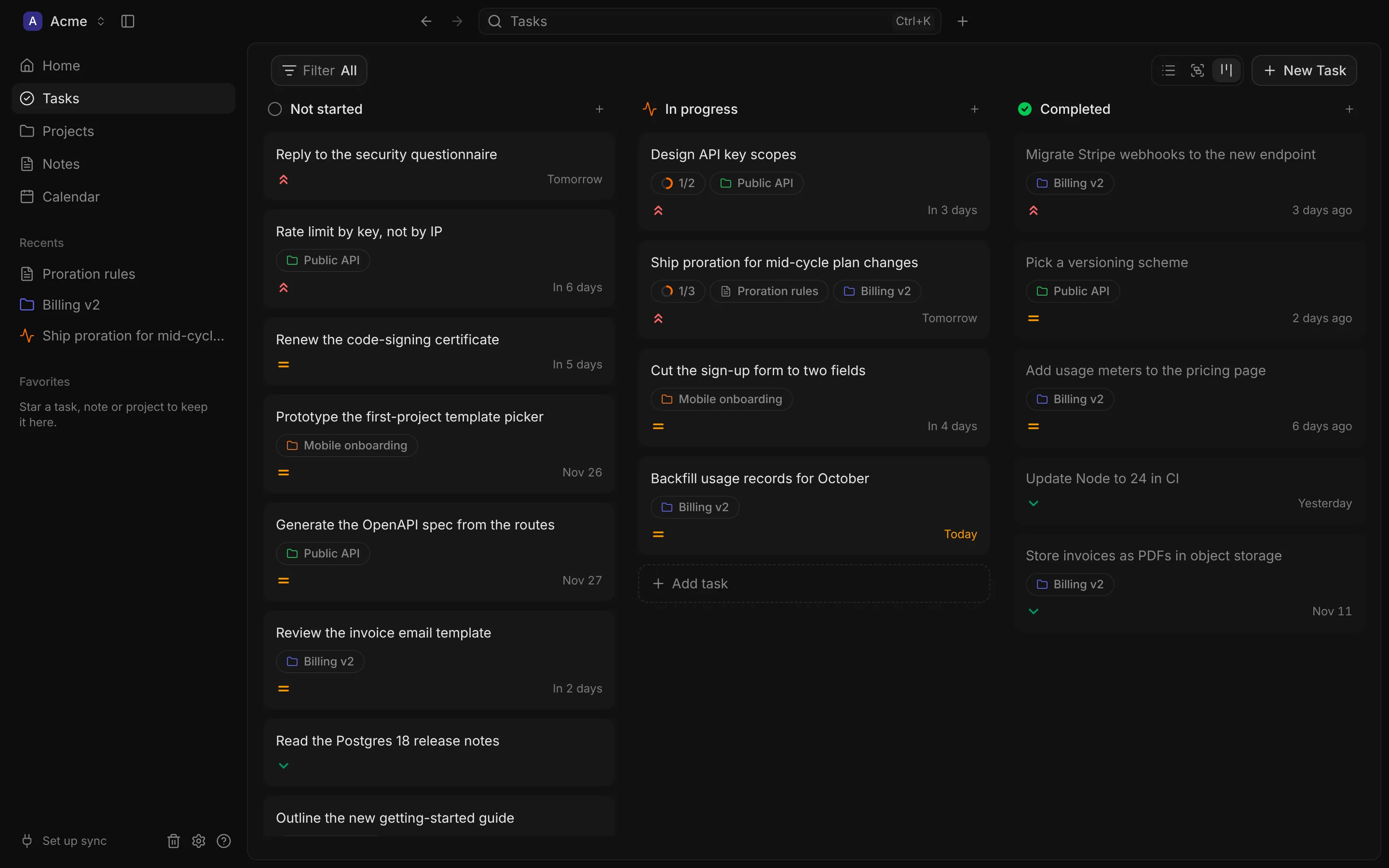
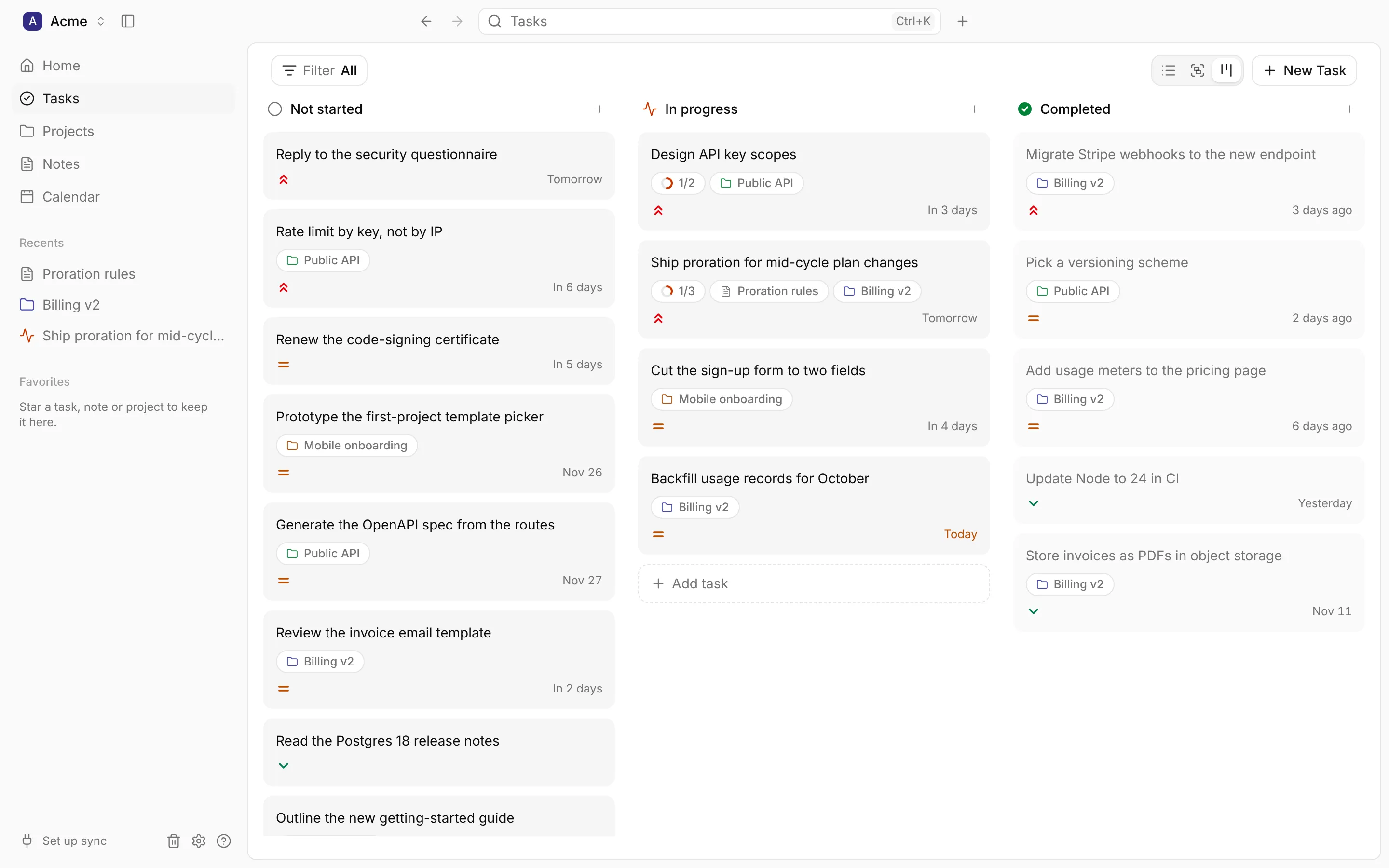
The view you open with is the Default view in Settings › Tasks.
Filtering and sorting
Section titled “Filtering and sorting”Filter narrows the list by:
- Status: Open (Not started and In progress), All, or one status. Whether completed tasks show by default is the Show completed tasks setting.
- Priority: High, Medium, Low or No priority.
- Project: one project, or No project.
- Due: Overdue, Today, This week (the next seven days) or No due date.
- Source: Local (your own tasks) or Synced (from Linear).
The button shows what’s on, such as “Open · High”; Clear filters resets it.
Sort orders the list (not the board, whose columns follow the status) by Priority, Due date, Status, Last updated or Created, ascending or descending.
Your filters, sort and view are part of the page’s address, so Back and Forward step through them, and DevBrain reopens the page as you left it.
Working with many tasks
Section titled “Working with many tasks”In the list and grouped views, tick the box at the start of a row, or press X on it, to select it. The bar that appears changes the Status, Priority, Due date or project (Move) of every selected task at once, or favourites or trashes them.
Right-click a task for its menu: open it, change its status, priority or dates, favourite it, open its parent or project, or move it to the trash.
With the keyboard, use ↑ and ↓ to move through the list and Enter to open a task. Then 1, 2 and 3 set it to Not started, In progress or Completed, F favourites it and ⌘⌫ moves it to the trash. See all the keyboard shortcuts.
Tasks from Linear
Section titled “Tasks from Linear”Issues assigned to you in Linear appear as tasks, with their key (such as ENG-124) on them. They’re read-only: their title, description, status, priority, dates and project come from Linear, and Linear’s own status name (such as “In Review”) is shown. Change them in Linear; Open in Linear is in the … menu.
You can still link them to notes and events, give them a task note, and favourite them.
To edit one in DevBrain anyway, choose Detach from Linear: it becomes your own copy, and Linear stops updating it. Reattach to Linear brings Linear’s version back, replacing your edits. See Integrations for what syncs.
The trash
Section titled “The trash”Move to trash (⌘⌫) takes a task, with its subtasks, out of your lists. DevBrain asks first (turn that off with Ask before moving to trash in Settings › Preferences), and the Undo button in the message that follows, or ⌘Z, brings it straight back.
Trash, at the bottom of the sidebar, holds every task, project and note you’ve trashed, until you delete it. Nothing is emptied automatically.
- Restore puts an item back where it was.
- Delete (Delete permanently) removes it for good. Deleting a task deletes its subtasks; its task note is kept.
- Empty Trash deletes everything in it.
- Open a trashed item to read it; restore it to change it.
Items in the trash aren’t searched. Tasks synced from Linear can’t be trashed: they leave when they leave Linear, or when you disconnect.