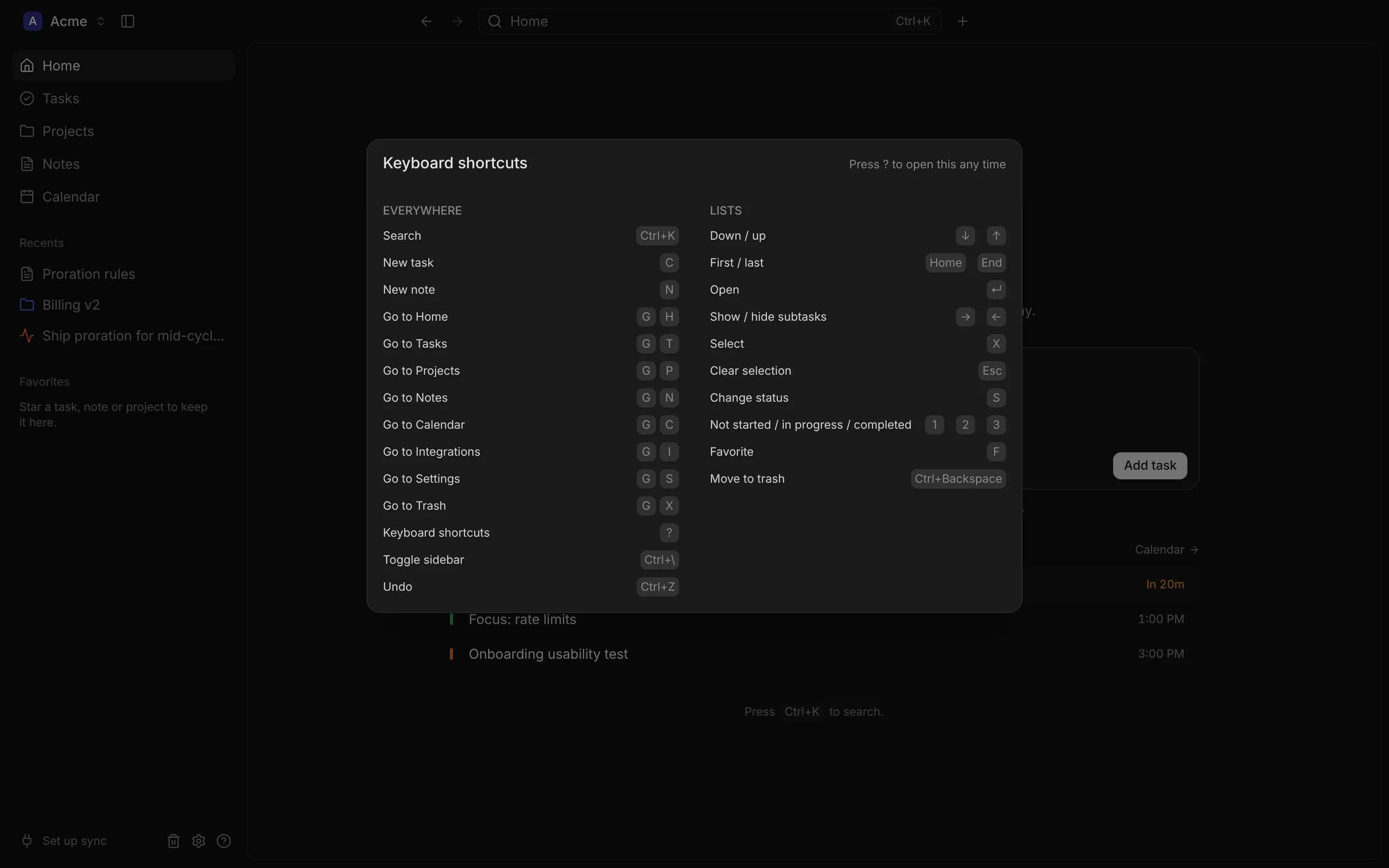
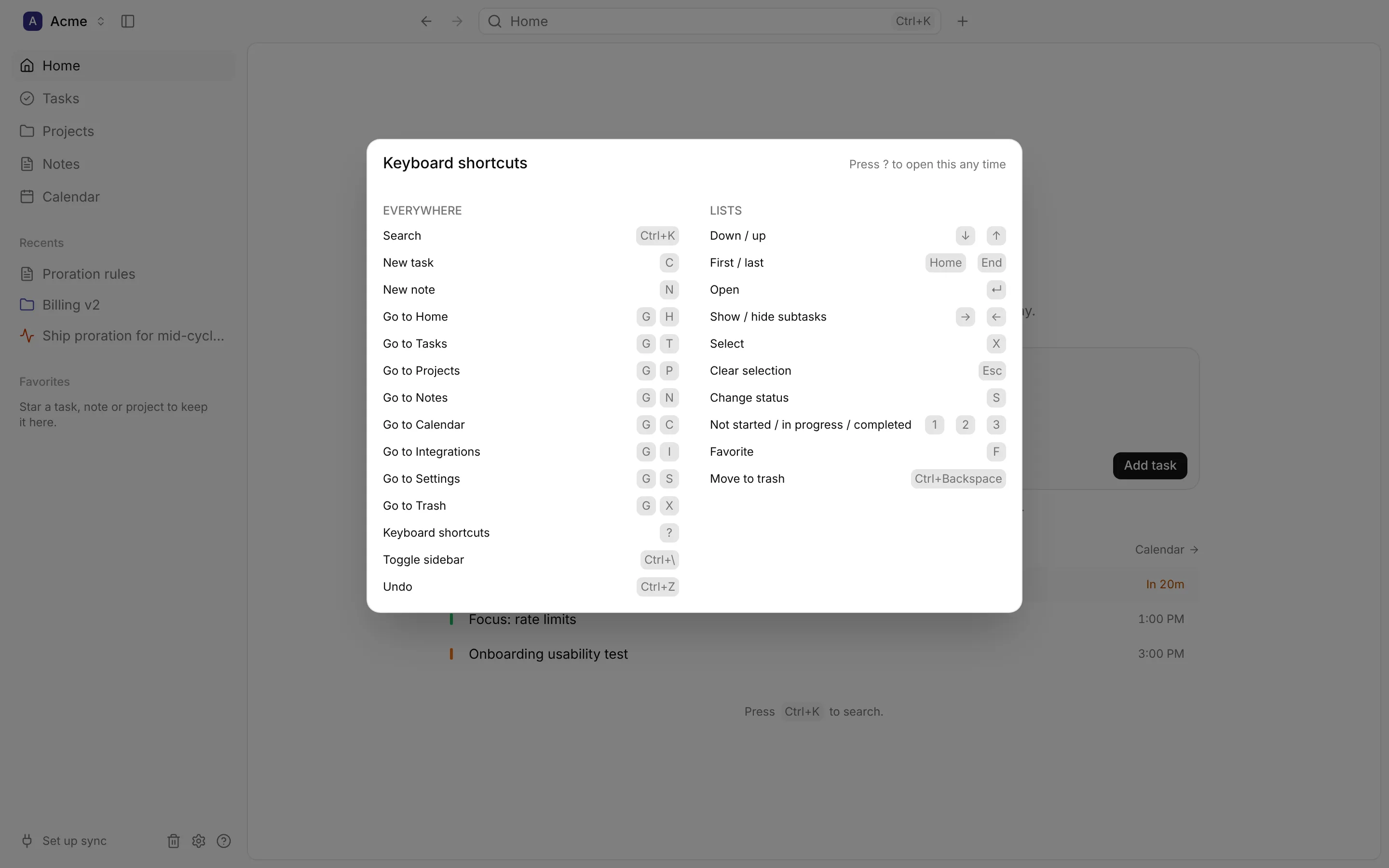
Press ? in DevBrain, or the Help button at the bottom of the sidebar, to see these
in the app. On Windows and Linux, ⌘ is Ctrl , and ⌘⌫
is Ctrl Backspace .
Keys
Action
⌘K Search
C New task
N New note
G H Go to Home
G T Go to Tasks
G P Go to Projects
G N Go to Notes
G C Go to Calendar
G I Go to Integrations
G S Go to Settings
G X Go to Trash
? Keyboard shortcuts
⌘\ Show or hide the sidebar
⌘Z Undo the last move to the trash, and other undoable actions
⌘D Duplicate the task or note you’re on
⌘, Settings
⌘O Open a workspace folder
⌘⇧S Sync now
For the “Go to” shortcuts, press the two keys one after the other. Single-letter shortcuts don’t
apply while you’re typing in a field.
In the lists of tasks, projects, notes and the trash:
Keys
Action
↓ ↑ Move down or up
Home End First or last
Enter Open
→ ← Show or hide a task’s subtasks
X Select
Esc Clear the selection
S Change the status
1 2 3 Not started, In progress, Completed
F Favorite
⌘⌫ Move to trash
With nothing selected, these act on the focused row; with a selection, on every selected item.
Keys
Action
Space Pick up a card, or drop it
← → Move the card to another column
Esc Put the card back
Keys
Action
⌘ Enter Create (in a New task, project or event dialog)
Enter / Esc Save or undo a title you’re editing
Tab / ⇧ Tab Next or previous type filter in search
Keys
Action
/ Block menu
@ Link a task, note or event
⌘B Bold
⌘I Italic
⌘U Underline
⌘⇧X Strikethrough
⌘E Inline code
⌘K Link the selected text
⇧ Enter Line break
⌘⇧V Paste as plain text