

Search
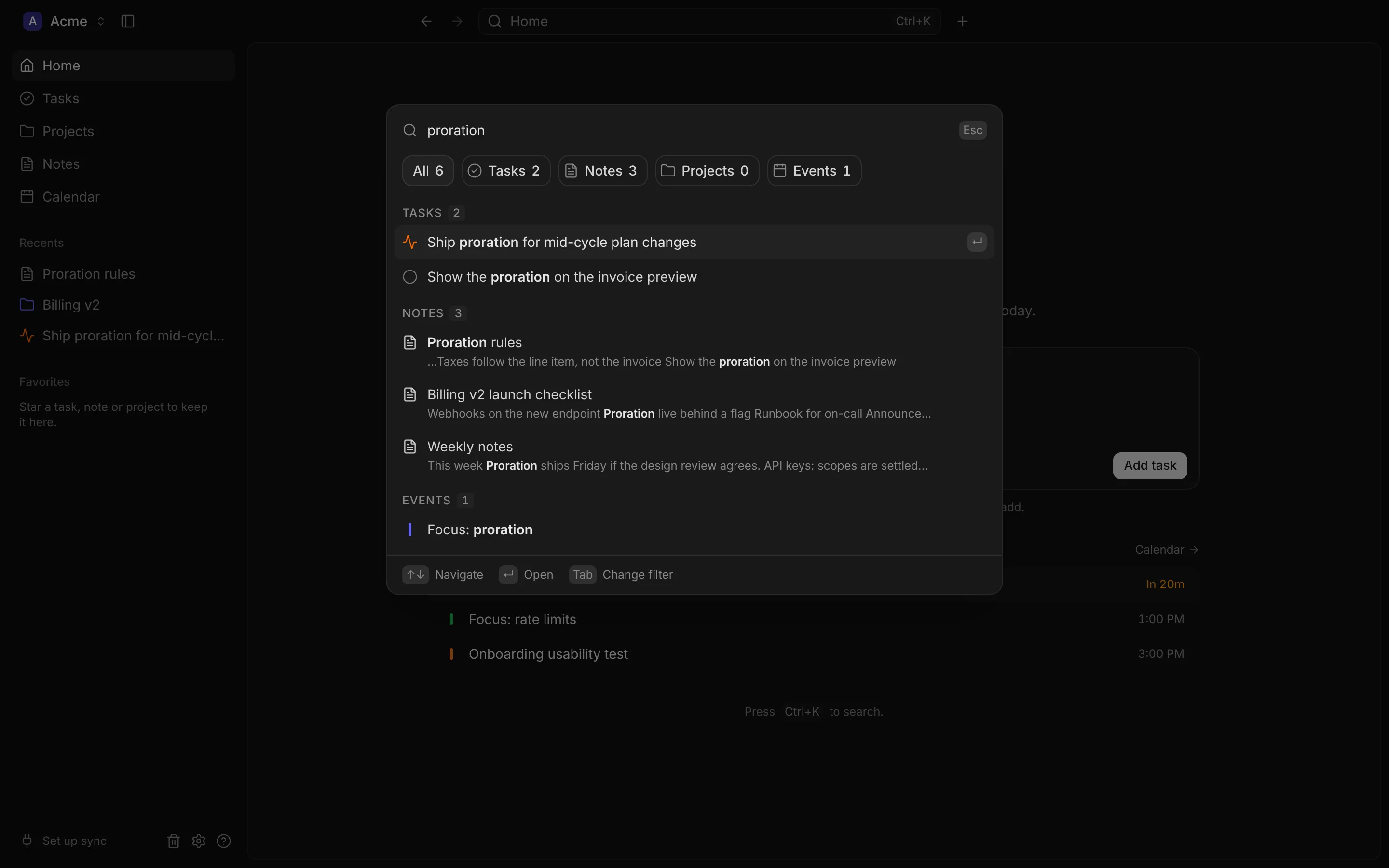
Press ⌘K (Ctrl K on Windows and Linux) from anywhere, even while you’re typing, or click the search field in the title bar. Edit › Find… in the menu bar opens it too.
What it searches
Section titled “What it searches”| Type | Searched in |
|---|---|
| Tasks | Title and description |
| Notes | Title and the whole note |
| Projects | Title and description |
| Events | Title and description |
Synced items from Linear and Google Calendar are searched like your own. Items in the trash aren’t.
- Every word you type must match. Words match the start of words too, so
meetfinds “meeting”. - Accents and case don’t matter.
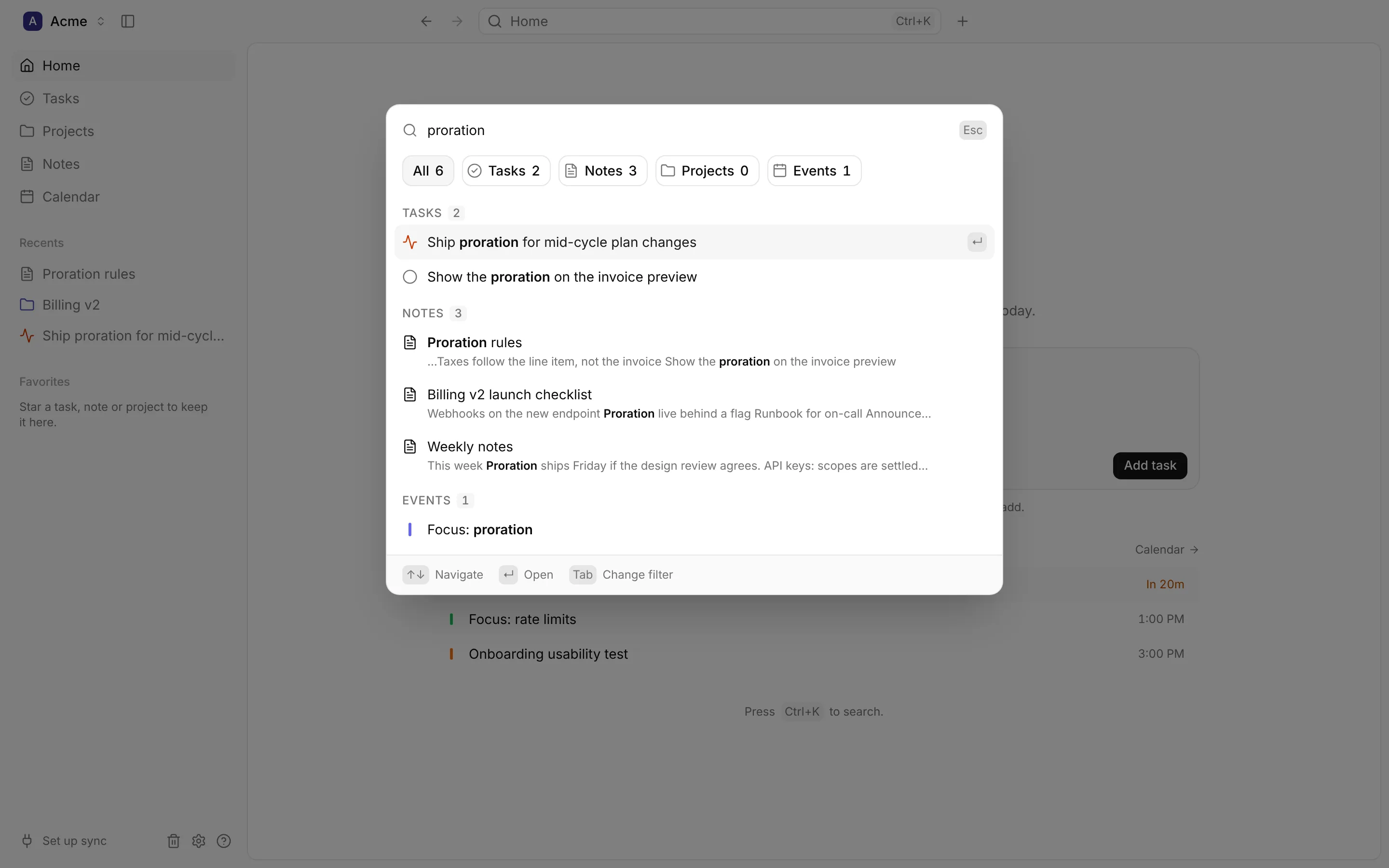
- Results update as you type. A match in the title ranks higher than one in the body, and the matching words are shown in bold.
Narrowing to a type
Section titled “Narrowing to a type”The buttons under the field (All, Tasks, Notes, Projects, Events) show how many matches each has. Press Tab and Shift Tab to move between them. All shows the top five of each type; a single type shows every match.
Before you type
Section titled “Before you type”With nothing typed, search shows the items you opened last under Recent, and Go to for every page with its shortcut (G then T for Tasks, for example). Pick a type first to see the recently updated tasks, notes or projects.
Opening a result
Section titled “Opening a result”Use ↑ and ↓ to choose a result, and Enter to open it: a task, note or project on its page, an event in the calendar on its day. Esc closes search.
If nothing matches, search offers to make it: New Task with what you typed as its title, or New Note.