

Integrations
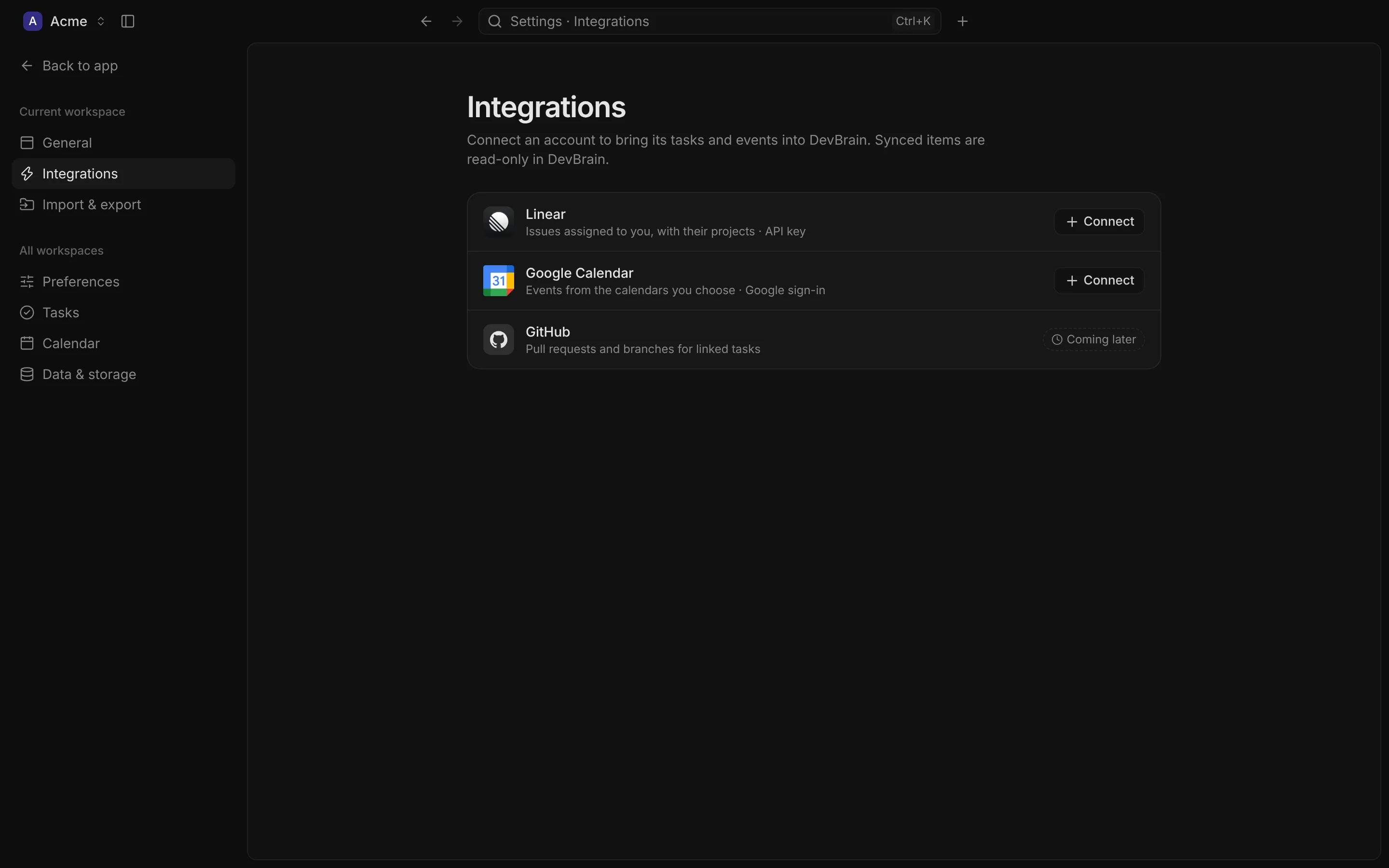
DevBrain can mirror Linear and Google Calendar into a workspace, so the work you track elsewhere sits in the same lists, boards and calendar as your own. Connect them in Settings › Integrations (press G then I). Each workspace has its own connections.
How sync works
Section titled “How sync works”- It’s one way. DevBrain reads from Linear and Google, and never writes back: not a status, a comment or an RSVP. Mirrored items are read-only in DevBrain, with a badge saying where they came from; change them in Linear or Google Calendar.
- They’re still yours to link. Link a mirrored task or event to your notes and tasks, give it a note, favourite it, search it.
- There’s no server in between. The app talks to Linear and Google directly, from your computer. Your sign-ins are encrypted with your computer’s keychain, stored in the workspace, and never sent anywhere but Linear or Google.
- Only the open workspace syncs. Another workspace catches up when you open it.
When it syncs
Section titled “When it syncs”- Every five minutes while the workspace is open.
- When the workspace opens, when you come back to DevBrain’s window, and when your computer wakes (if it hasn’t synced in the last minute).
- When you turn an account or source on, reconnect it, or change which calendars to sync.
- When you ask: Workspace › Sync Now in the menu bar, or ⌘⇧S (Ctrl Shift S).
The bottom of the sidebar shows how it’s going: “Synced 2 min ago”, “Syncing…”, “Sync failed” (with a button to try again), “Offline”, or “Paused” when a service asks DevBrain to slow down. After a failure DevBrain tries again by itself, waiting a little longer each time.
Connecting an account
Section titled “Connecting an account”Each service has its own page, with how to connect it and exactly what it brings in:
- Linear: the issues assigned to you, as tasks, with their projects. Connected with a personal API key.
- Google Calendar: the events of the calendars you choose. Connected by signing in with Google in your browser.
You can connect more than one account of each, such as a work and a personal Google account. Each account card on the page shows its status (Connected, Needs reconnect or Off), when it last synced, and its sources: Tasks for Linear, Events for Google Calendar.
Turning sync off and on
Section titled “Turning sync off and on”Each account has a switch, and so does each of its sources (Tasks for Linear, Events for Google). Turning one off pauses it: what it brought in stays as it is, and its sign-in is kept. Turning it back on picks up where it left off.
Disconnecting
Section titled “Disconnecting”Disconnect… on an account stops syncing it and deletes its key or sign-in from your computer (DevBrain also asks Linear or Google to revoke it). Choose what happens to what it brought in:
- Keep as local copies (the default): the items stay in DevBrain as your own. They stop syncing and become editable.
- Remove them: the items are deleted, except those a note or task links to (or that hold a task that’s kept), which stay as local copies.
If you connect the same account again later, DevBrain offers to Reattach the local copies so they sync again (replacing any changes you made to them), or to Keep Local.
When an account needs reconnecting
Section titled “When an account needs reconnecting”If Linear or Google rejects the saved key or sign-in (you revoked it, or it expired), the account shows Needs reconnect and stops syncing. What it already brought in stays. Choose Update API Key (Linear) or Reconnect (Google) to carry on.
This also happens when you move a workspace to another computer: sign-ins are encrypted with a key in your computer’s own keychain, so another computer can’t read them. Your accounts, their settings and what they synced are all kept; reconnect each to resume.
Coming later
Section titled “Coming later”GitHub, for the pull requests and branches of your tasks, is listed but not available yet. Until then, add a task’s pull request link by hand.