

Projects
A project gathers the tasks and notes for one goal, such as a launch, a migration or a client, and shows how far along it is.
The Projects page
Section titled “The Projects page”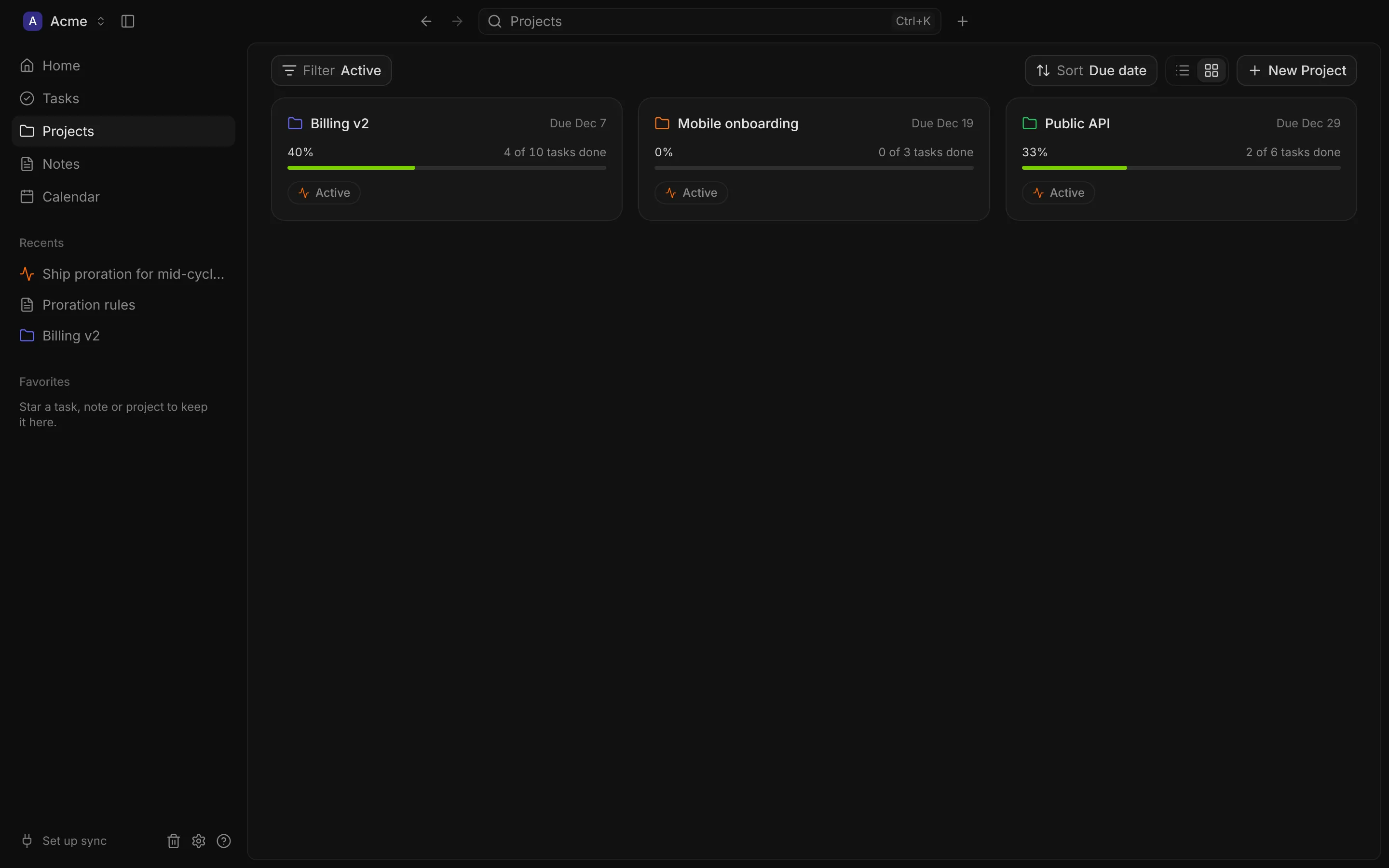
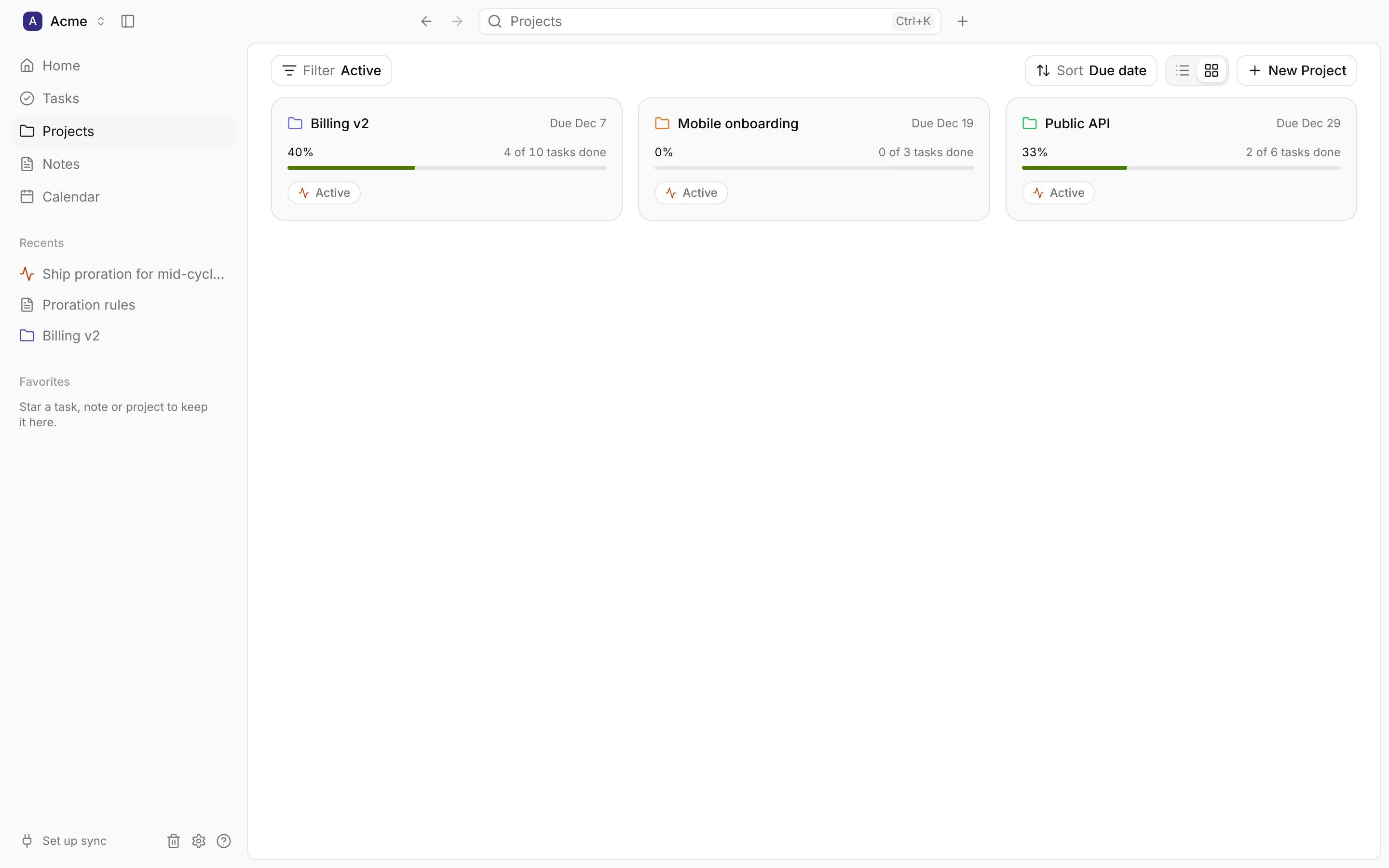
Show your projects as a List or as Cards. Each shows its colour, status, progress (the share of its tasks completed) and its due date, or the day it was completed.
- Filter by status (Active by default, so projects that are not started, on hold or completed are hidden until you pick All or that status) and by source (Local or Synced from Linear).
- Sort by Due date (the default, soonest first, projects with no due date last), Status, Last updated or Created.
- Right-click a project to open it, favourite it or move it to the trash. In the list, select several to change their status or favourite them together.
Creating a project
Section titled “Creating a project”Choose New Project, or New project in the title bar’s + menu. The dialog takes a Name, a description, a status, start and due dates, a colour, and a list of tasks to create in it. Create Project opens the new project.
You can also turn a task into a project: Convert to project in the task’s … menu. Its subtasks become the project’s tasks.
Status and progress
Section titled “Status and progress”A project’s status is one of Not started, Active, On hold or Completed. You set it; DevBrain doesn’t change it for you. Marking it Completed records the day, which then shows as “Done Nov 12”.
Progress is worked out from its tasks: the completed ones out of all of them. Cancelled tasks and tasks in the trash don’t count, and a project with no tasks is at 0%.
A project’s page
Section titled “A project’s page”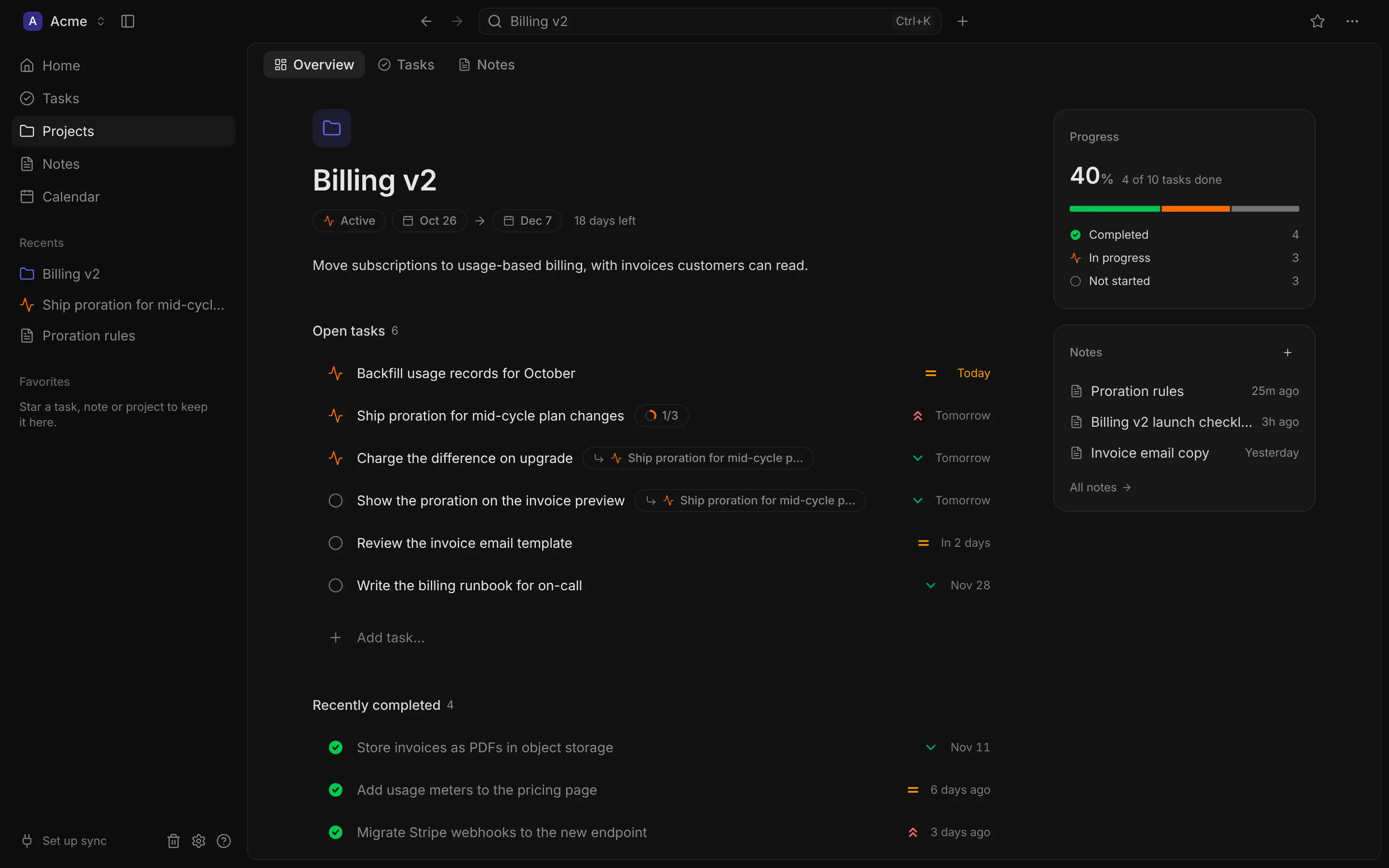
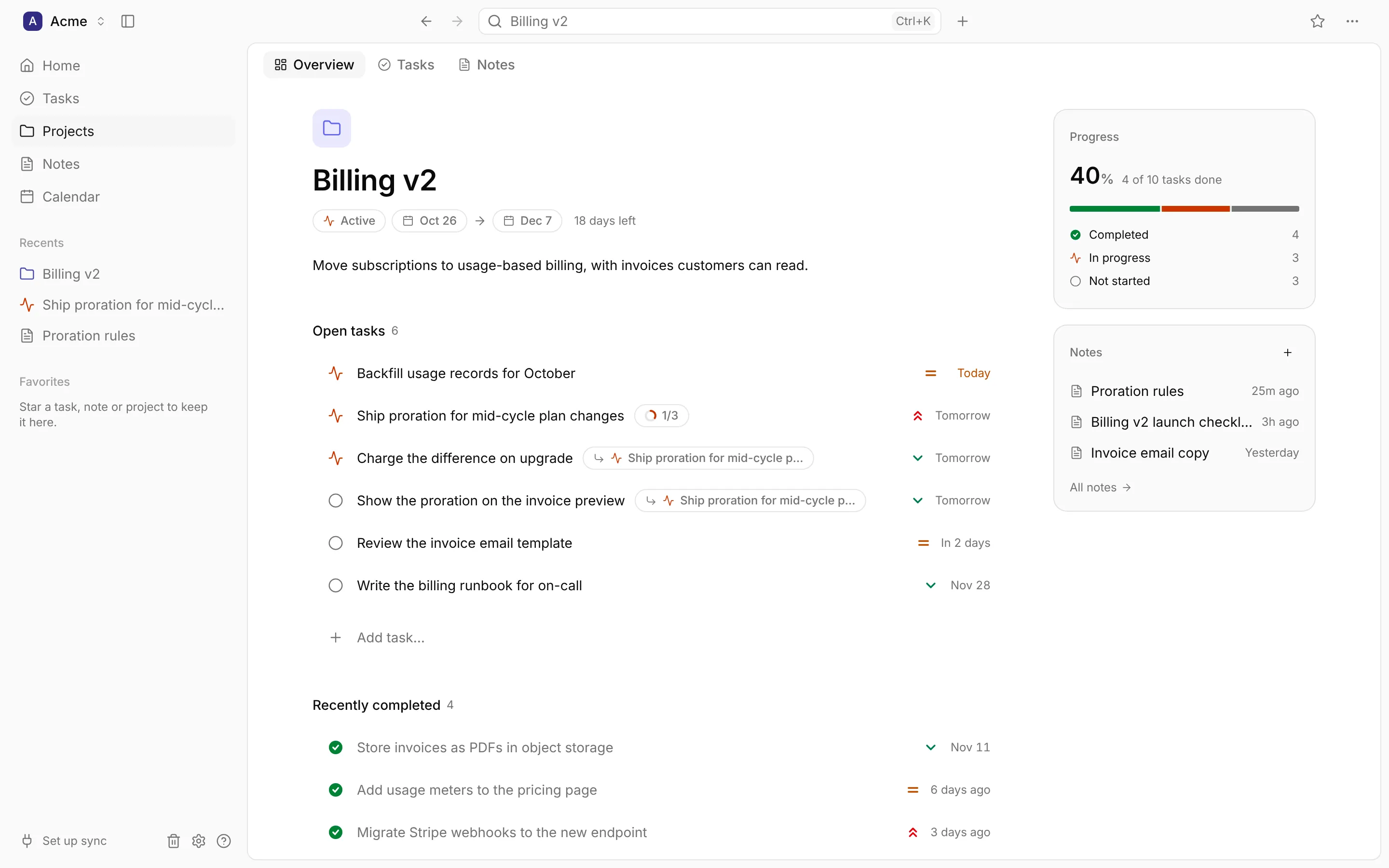
The page has three tabs.
Overview
Section titled “Overview”The project as a document: its name, status, start → due dates with the time left (“12 days left”, “2 days overdue”), and its description. Below come its Open tasks, with a row to add one, and its Recently completed tasks.
On the right, Progress shows the percentage and how many tasks are Completed, In progress, Not started and overdue; click a line to see those tasks. Notes lists the project’s latest notes, with a + for a new one.
Click the coloured folder to change the project’s colour. A new, empty project has a Move Tasks Here button, which shows your tasks that aren’t in any project.
The project’s tasks, with everything the Tasks page has: list, grouped and board views, filters and sorting. It’s grouped by status at first, and new tasks go in this project.
The project’s notes as cards, most recently edited first, with New Note.
The project’s … menu
Section titled “The project’s … menu”New task and New note (already in this project), Change colour, Copy as Markdown (its details, description and tasks as a checklist) and Move to trash.
Moving things into a project
Section titled “Moving things into a project”- A task: its Project property, or Move with several selected.
- A note: + Add to project under its title.
- From Home: type
#Project namein the capture box.
Deleting a project
Section titled “Deleting a project”Move to trash takes the project out of your lists; restore it from Trash. When you delete it for good, its tasks and notes are kept, without a project.
Projects from Linear
Section titled “Projects from Linear”The Linear projects of the issues assigned to you come in as projects too. Like their issues, they’re read-only in DevBrain: their status, dates, colour and description come from Linear.