

Settings
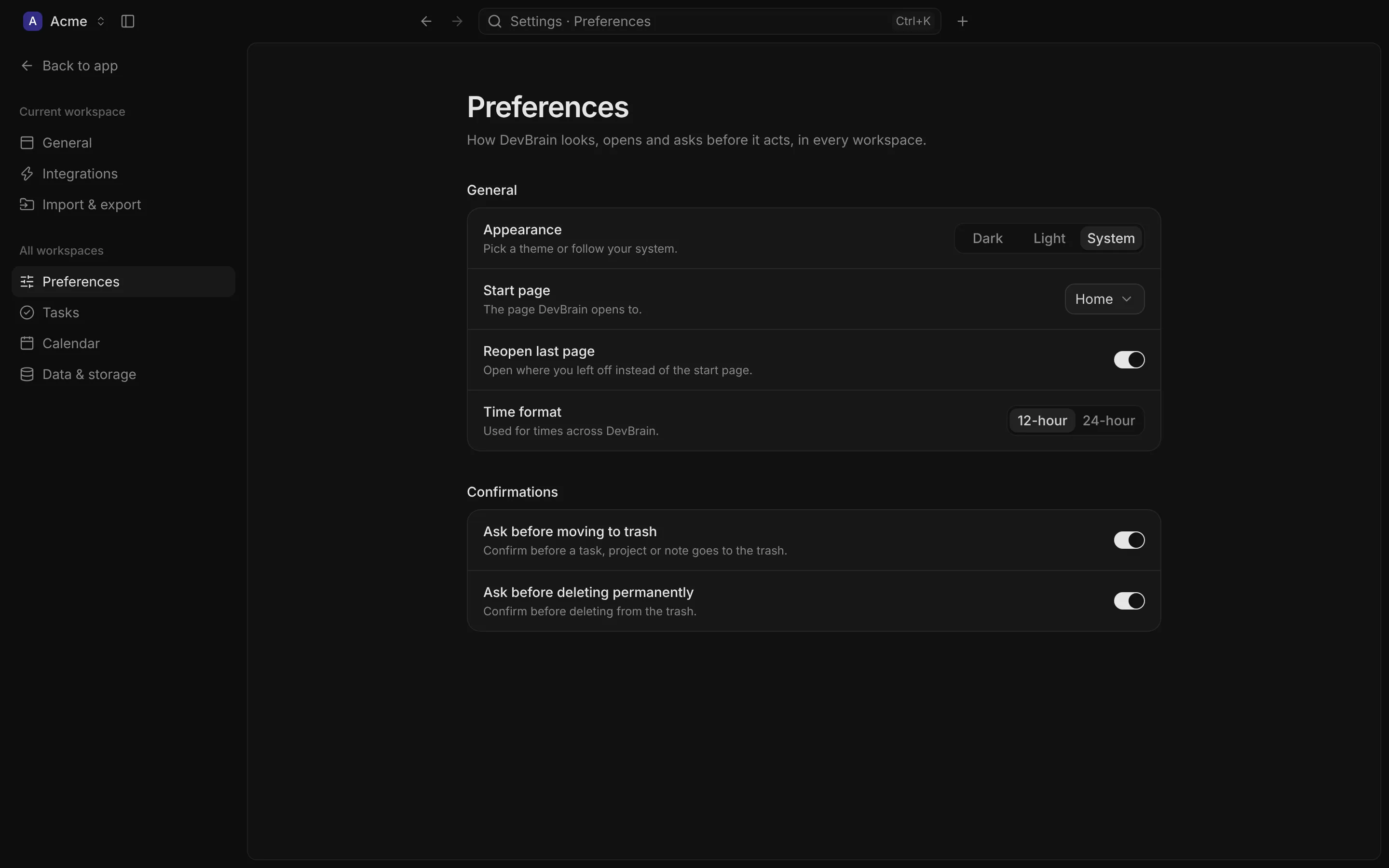
Open Settings with the gear at the bottom of the sidebar, Settings… in the menu (⌘,, or Ctrl ,), or G then S. Every change takes effect at once; there’s no Save button. Back to app returns you to where you were.
The settings sidebar is in two parts:
- Current workspace: what the open workspace stores in its own folder. Another workspace has its own.
- All workspaces: what DevBrain keeps in its settings file, shared by every workspace.
Current workspace
Section titled “Current workspace”General
Section titled “General”- Workspace name: shown in the workspace menu and the window’s title.
- Workspace colour: the colour of its tile.
- Delete workspace (in the Danger zone): deletes the workspace’s folder, with every task, project, note, calendar and connected account in it, after you type its name to confirm. Its integrations are disconnected first. This can’t be undone. A workspace you added with Open folder… was copied in, so the folder you picked then is untouched.
Integrations
Section titled “Integrations”Connect and manage Linear and Google Calendar. See Integrations.
Import & export
Section titled “Import & export”Import tasks and notes, or export them. See Import and export.
All workspaces
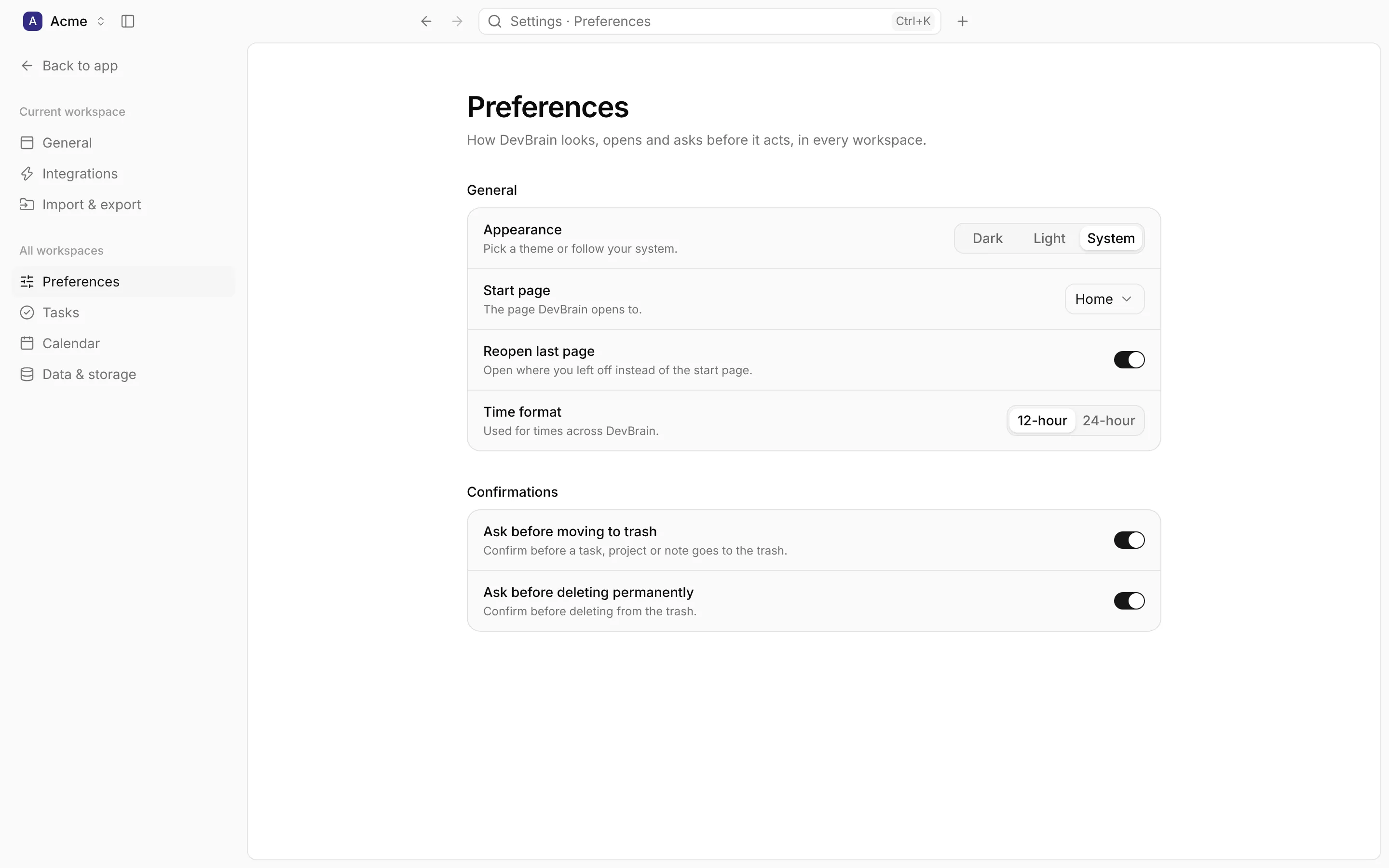
Section titled “All workspaces”Preferences
Section titled “Preferences”| Setting | What it does | Default |
|---|---|---|
| Appearance | Dark, Light, or follow your system | System |
| Start page | The page DevBrain opens to: Home, Tasks, Projects, Notes or Calendar | Home |
| Reopen last page | Open where you left off instead of the start page | On |
| Launch at login | Open DevBrain when you log in (macOS and Windows) | Off |
| Time format | 12-hour or 24-hour, for times across DevBrain | 12-hour |
| Ask before moving to trash | Confirm before a task, project or note goes to the trash | On |
| Ask before deleting permanently | Confirm before deleting from the trash | On |
| Setting | What it does | Default |
|---|---|---|
| Default sort | How task lists are ordered: Priority, Due date or Status | Priority |
| Default priority | Given to new tasks: High, Medium or Low | Low |
| Default due date | Given to new tasks: Today, Tomorrow or Next week | Today |
| Default view | How task lists open: List, Grouped or Board | List |
| Show completed tasks | Keep finished tasks in lists | On |
Calendar
Section titled “Calendar”| Setting | What it does | Default |
|---|---|---|
| Week starts on | Monday or Sunday | Monday |
| Default event length | Given to new events: 15 min, 30 min or 1 hour | 15 min |
| Default view | How the calendar opens: Day, Week or Month | Week |
| Hide weekends | Show Monday to Friday only in the week and month views | Off |
Data & storage
Section titled “Data & storage”- Data folder: where DevBrain keeps your workspaces, with a button to show it in your file manager. See Data and privacy.
- Reset settings: puts every setting under All workspaces back to its default. Your workspaces, and everything in them, are kept.